
Running Elections (draft)
Elections Overview
It is in a group's best interest that elections be fully managed on Rubric, for situations when results must be reviewed and verified. The platform has a variety of settings to ensure that voters can democratically engage with their clubs, and that individuals overseeing the elections can abide by processes outlined in a group's constitution.
For a deeper understanding of democratic procedures and how to abide by student group policies when conducting an election/byelection, refer to these resources.
Creating an Election
-
Login to your student account via hellorubric.com
-
Click the “Login” drop-down and select Student Portal. Login with your student email and
appropriatepassword. -
Note that, you must be assigned an executive role with election permissions
(campaign feature & membership)on Rubric to be able to complete this task.
-
-
OnFrom the top navigation bar,clickselectonAdministration.Elections.UnderYouthe Leadership section, select Elections. This willbe taken toopen the Elections Manager Overview page.-
To see past elections and data, scroll down to the table at the bottom of the page.
-
To create a new election, click on the “Create Election” button on the top-right of the screen.
-
It will appear in the Active Elections table at the top of this page for future edits once launched.
-
-
-
Input the basic Election Information to create your election.
-
This includes the name of the election. We recommend the following:
-
[Club Name]: [Election Type] - Semester, Year
-
Election types are typically annual or byelection.
-
For example, Lettuce Club: Annual Elections - Fall 2025
-
-
-
The time window for voting. Including the start and end dates.
- Double-check these details before launching the election, as changes cannot be made once voting period has started without deactivating the election.
-
The results release date.
-
-
Optional: Select a Returning Officer.
- You may assign one or more Returning Officers to oversee and manage the election.
- Returning Officers should be impartial and not have a conflict of interest in the election.
-
For advanced options, there are
twoseveral additional settings.WeReviewhighlyeach option and enable it where appropriate for your group’s election procedures - we strongly recommendboththe first two beset totrue, by clicking on the icons until they are checkmarked.enabled.One Win Per Candidate RegardlessWhenofenabled, a candidate who wins one position will not be able to win another position in theformatsameofelection. Enable this if yourballot,constitutiononeorwinelectionperprocedurescandidateprohibitensurescandidatesthatfromone person cannot win the majority forholding more than one elected position.Anonymous Votes WhenKeepsaindividualvotevotingischoicescasted,hiddennofrompersonelection(administrative or otherwise) can view the information of the voter.organizers. Onceturned on,enabled, thisfeaturesetting cannot beundone.turned off. This must be enabled for student group elections, as elections are required to use a secret ballot.SSO Login Requires voters to authenticate using their institutional login before accessing or submitting the ballot. This option is currently not available. Membership Voting Restricts voting to students who hold an active membership. You may require either all memberships or select specific memberships that are eligible to vote. -
Proceed to the (optional) voter group settings. This will allow you to create cohorts of voters that can then be assigned certain votes limited to their group. Some examples are as follows:
-
-
A delegate representing an off-branching student group represented on your council should only be voted on by members of that branching organization.
-
A first year representative vote should only be available to members in the First Year voter group.
-
-
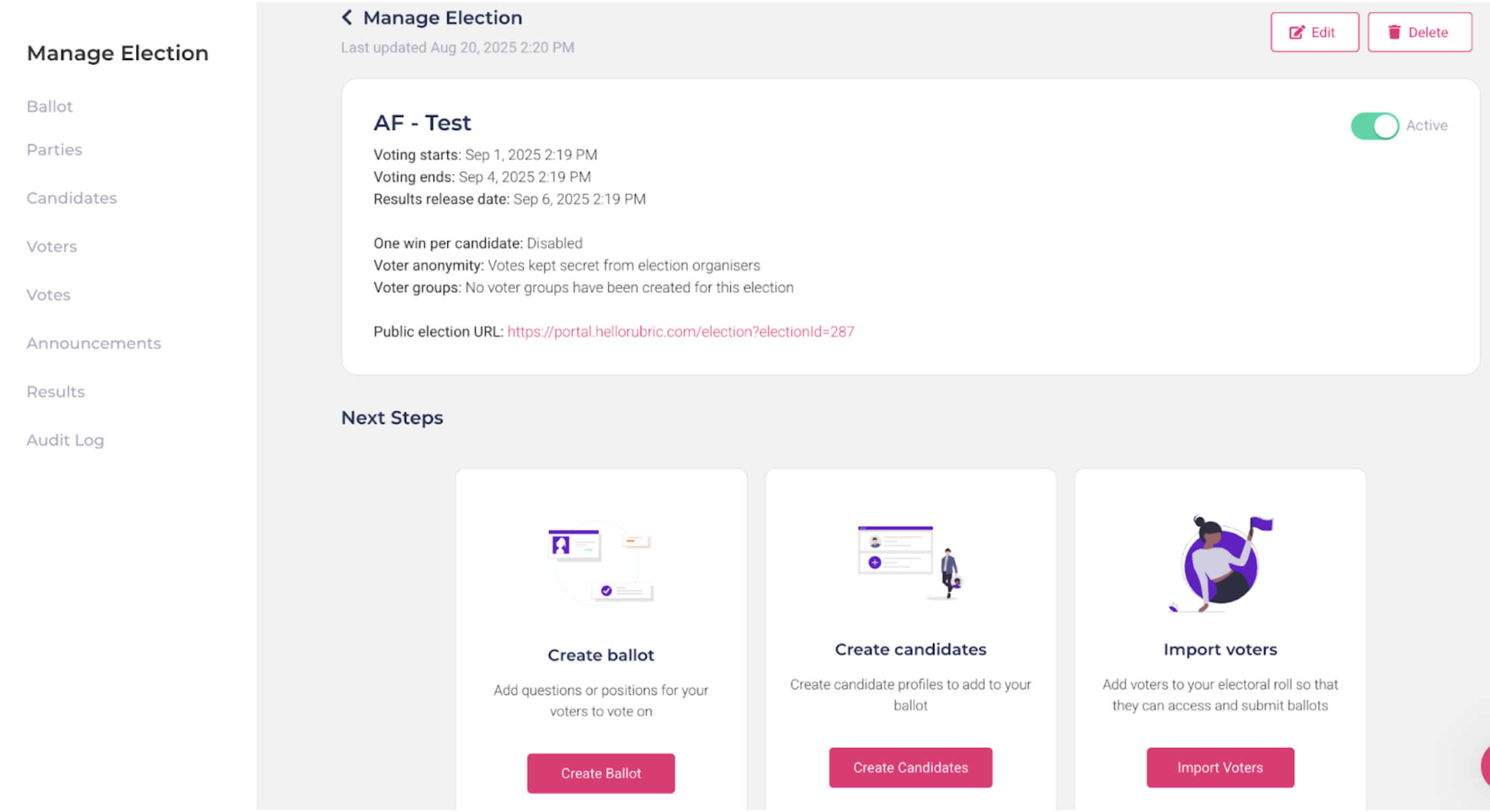
If everything goes well, you should be brought to the Election Management page:
Managing an Election
There are two main featuresareas ofinvolved Elections.in Thesetting up an election on Rubric: ballot and votevoter management management,, and theelection logistics. management.Each Botharea of these will need toshould be fullyreviewed and completed for your elections to run on Rubric. To start off, we’ll reviewbefore the ballotelection andis vote features at the bottom of the Election Management page.launched.
Creating the Ballot
To create a ballot, startclick by clicking the “Create Ballot” buttonBallot in the left-most pop-upsection at the bottom of the screen.Election Management page. Rubric offers usersuses a dragdrag-and-drop ballot builder, allowing you to add, arrange, and drop program that allows them to customize theirdifferent ballotvoting withelements simplebased pre-coded metrics. Makingon your ballotgroup’s (aka, elections form) flexible and easily delivered.needs.
The ballot header is a brief introduction to your members, including the title of your election (set in step one) and a description. Things that may be important to include in your election:
-
A brief (1-2 sentences)
address.note,Includingincluding a greeting, and emphasis of the importance of the electoral process. -
A notice of the timeline of the elections. Including when the ballot opens, closes, and results are set to release.
-
A list of how a vote is considered invalid. This could include casting multiple votes, sharing the voting link with non-members, incorrectly stating your full name or registered member email, etc.
-
Note that these must be listed in your constitution or election package (formal documentation which is voted on) to be enforceable.
-
The ballot body is where you get to customize your ballot according to how your members are voting, and what your members are voting for. You would always be voting for your officer positions, unless a rare unforeseen circumstance occurs. To insert these elements, simply click and drag them into the ballot in the centre of the screen, releasing them and ordering them as you prefer.
A full detailed overview of the different drag-and-drop elements your group could utilize can be found from the official Rubric help page. |
The usage of Student Bank Details and Student ID is strictly prohibited under the University of Alberta FOIP policy. Do not use these elements under any circumstances.
Once your ballot is complete, click Preview Ballot to ensure it is ready to be published. After that, don't forget to save the ballot. You'll return back to the Election Management page.
Creating Candidates
To create a candidate, start by clicking the “Manage Candidates" button at the bottom of the Election Management page. The four elements of a given candidate profile are summarized as such:
- Name - Should include first name (preferred) and last name of a candidate.
- Photo - Should be a professional photo for easy identification, screened by your Elections Officer.
- [Optional] Candidate Party -
-If the candidate isrepresentingaffiliatedonewithofa party or slate, select thepartiesappropriateonlyparty.availableParties are used toagroupselectaffiliatedvotingcandidatesdemographic (i.e. First Year Representative) ensure theyand aresetseparateasfromsuch.voter groups, which determine which voters are eligible to vote for specific positions. - [Optional] Candidate Description - A brief description of the candidate, such as their experiences within the group, year of study, passion for the organization, etc.
Candidates can also be created when creating the ballot. You can also edit and delete candidates in the manage candidates page - but note that deleting a candidate will remove them from the ballot entirely, which may break your ballot if you try to publish it.
Importing Voters
In order for your election to run, youreligible voters must be able to access the ballot and recordsubmit their votes. Click on "import voters" on the bottom ofFrom the Election MangementManagement page.page, select Import Voters. There are two ways to giveadd your voters access...voters:
- Import Voters
-— This is the recommendedway.methodTofordoaddingso,multipleclickvoters.onClickthe "ImportVoters"Votersbutton onin the top-rightofcornertheandscreen. You will need to import the information usinguse thecsv.CSV templatetemplateprovided byRubric.RubricImporttoalluploadnecessarytheinformation,requiredandvoterclick "save".information. - Add Voters
-— This is the manualway.method.IndividuallyAddimportvotersa voterindividually byimputingentering theirname,namevoterand email,andthenassigningassign them to thecorrectappropriate votergroup.group if applicable.Note that ifIf youmakeaddthemanyone as a testvoter,voter,youmakemustsure to removetheall test voters beforethecalculating and publishing resultscansobethatpublished.onlyThatlegitimatewayvotes are included in the finalvoting tally is representative of legitimatevoters.tally.
Election Logistics
Now that we've set up the ballot, candidates, and voters, we can move on to the election logistics. To start, return to the Election Management page of your election of interest:election:
On the left-hand side you have the Manage Elections overview. Selecting ballot, candidates, or voters will take you to the same management pages as described above. Below is a brief summary of the other (new) logistical elements:
| Parties |
Allows you to Create Parties (cohorts of individuals, such as a slate or Co-Executives) for the ballot.
|
| Votes |
Once a vote is cast, you can see the full list of voters who completed the ballot.
|
| Announcements |
There are three types of announcements that may be edited and sent out...
You can either edit a pre-existing template linked to the Elections Feature, or edit directly via the Campaign feature. These can also be schedule-sent in advance! |
Once all of this is done, you can then set your election to Active by clicking on the toggle on the top-right side of the Election Management page! |
Announcing Results
Once the voting window has ended, the student group will need to validate and announce the results to their membership.
It is the group's responsibility to ensure all votes are valid, and the group meets Quorum and Majority. Please refer to the terminology page for more information.
- From the
EventsElection ManagementPagepage, select Results,onfrom the left-handside, click onResults.menu. OnClick Count Votes in the top-rightside of the Manage Results page, click onCount Votes.corner.The programRubric willautomatically tally the votes cast, and displaycalculate the resultsas statistics (graphs, pie charts).This process will analyzefor each positionand determine the resultsbased on the ballot question type andthecounting methodchosenselected during ballot creation.- Review the
ballot'scalculatedcreation.results before publishing them.
You can thenpublishthe results, making them available to view onWhen theclub'sresultspageare ready, click Publish Results.- Published results will only become publicly accessible after the election's specified results release date
set during the ballot's creation.
- .
- Published results will only become publicly accessible after the election's specified results release date
EnsureOnceyoupublished,useRubric will generate atestuniqueelectionsresultsformlinktothatsee what information becomes publicized. If you do not want the formal percentages (i.e. who won/lost by what percentage of votes cast) this will need tocan bedeterminedsharedaheadwithof the results release date.members.
Appeals & Auditing
In the case when an individual calls for an appeal (a reconsideration of the election procedure and/or election results) it is important to access information that supports the initial investigation. Here are a few key details that Rubric provides groups to ensure elections are run fairly:
Audit Log
Any single individual who accesses the Elections Feature on a group page is recorded in the Audit Log. Including the portal used to gain access, the type of action, the person's email, and a time stamp. Some key disclaimers:
- Administrators (SGS/UASU Staff) can access a group's elections via the
adminstrativeadministrative portal. These individuals are specifically marked as Union users. - Access is when an individual only opens a page without interacting with any elements. Create or Update is when an individual physically alters the information/permissions of the election itself.
- If you are looking into the audit of a specific individual, you can Filter the table by that individual's email and see their full history on the elections page.
Appeal processes are required to be outlined in a student group's constitution, this should be referenced first in the case of an appeal. If additional support is needed, contact Student Group Services at clubs@uasu.ca.
Common Troubleshooting
With the Elections Feature on Rubric offering so many options, lots of student groups tend to run into roadblocks. Below are a few common issues, and their solutions. In the event that additional support is needed, contact Student Group Services at clubs@uasu.ca.
- Ensure that your election dates (announcement, voting window, results) are at least 24-hours in the future.
- Ensure that the Voters, Ballot, and Candidates field have all been set up. These are the bare minimum requirements for your election to be published.
- Ensure that the group is affiliated. Your club will not appear on the group page and may become inaccessible to voters who use the elections link/
recievereceive communications. To regain affiliation, you will need to complete your group's annual registration.