
Registration Forms
This page will show you how to access club registration on Rubric as a re-registering student group, along with the preliminary steps necessary to format all required information for the form.
Ensure that you have already set yourself as the primary officer (President) for the club. If you have yet to complete this step, refer to this page.
The first step is to login to your student account on hellorubric.com.
- Click the "Login" drop-down and select Student Portal.
- Login with your UAlberta email and password.
- Click the icon in the upper right-hand corner.
- From the options, click on the name of your student group under "Switch Accounts".
- You will now be viewing your club page as a club executive.
Next, you will need to assign the incoming executives with their roles.
- Click on the icon in the top right corner.
- Click on "Society Exec Team".
- Using the highest table, you will be able to edit the types of roles.
- The title of the role.
- The permissions of the role.
- Using the lowest table, you will be able to edit the executives assigned to each role.
- The name of the officer.
- The (ualberta) email of the officer.
For a more detailed tutorial about managing executive roles, visit this page.
Once this is completed, you will then need to confirm your membership information.
There are additional files required to be uploaded in the registration form. Refer to this page and complete all documentation related to your student group. With all the necessary information readied, you can now complete a full registration.
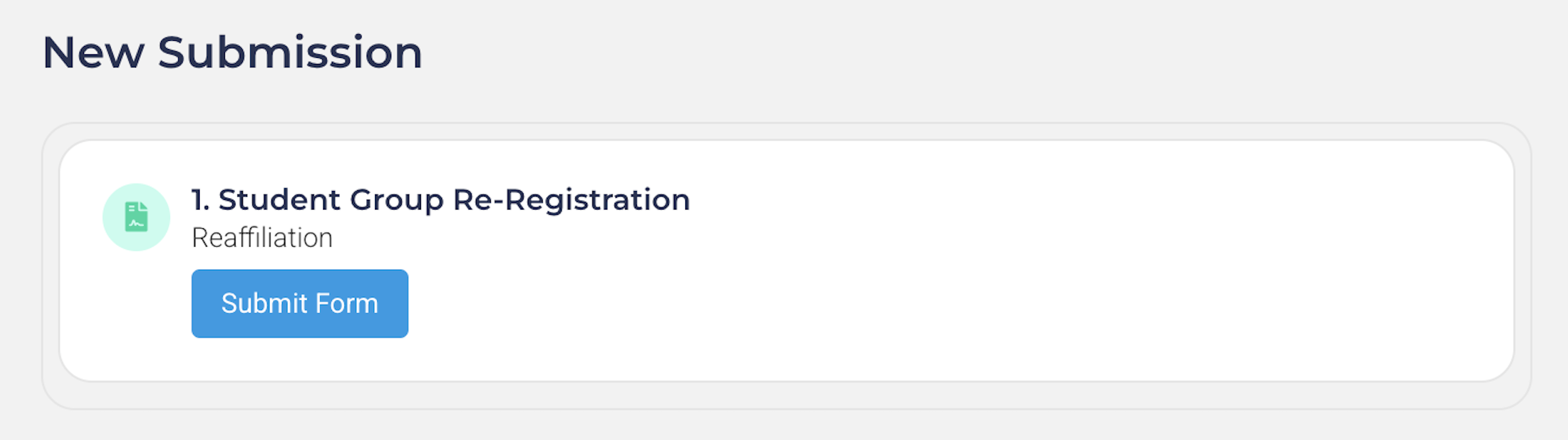
If done correctly, you should be able to see the form submission page, with the "Submit Form" button:
Groups will need to receive full approval on their registration BEFORE their deadline. Otherwise, the group will be automatically disaffiliated and lose access to Rubric's features, including but not limited to: event submission, membership management, elections, etc.
A detailed breakdown of your registration deadline and submission window can be found here.
|
ELECTION MONTH |
REGISTRATION OPENS |
REGISTRATION DEADLINE |
|
January |
|
February 28th |
|
February |
|
March 31st |
|
March |
|
April 30th |
|
April |
|
May 31st |
|
May |
|
June 30th |
|
June |
|
July 31st |
|
July |
|
August 31st |
|
August |
|
September 30th |
|
September |
|
October 31st |
|
October |
|
November 30th |
|
November |
|
December 31st |
|
December |
|
January 31st (Following Year) |
An example is as follows:
- An Election Month indicates that your elections are held sometime within that month - in this example it is April.
- Your group's registration form will open at the beginning of your election month, two months before your deadline - in this example it would be April 1st.
- Your deadline is set to the last day of the month following your election month. You must have your registration fully approved by that day - in this example, it would be May 31st.
Registration submissions that do not meet requirements will be denied for resubmission without possibility of extending the original deadline. We highly recommend student groups submit their registrations as soon as possible in case it is initially denied. To optimize your student group registration:
- The outgoing President (or equivalent) can prepare certain sections of the registration beforehand, such as renewing insurance, or receiving a licensing agreement for trademarks & logo.
- Holding your elections within the first week of your election month. This allows for additional time to obtain approval, compared to holding your elections at the end of the month.
- Prepare transition files and meetings. This will help your student group pass on knowledge and processes to avoid incomplete or rushed registrations. An example of transition documents can be found here.
| For more information about registration, including how to start a new group, visit the Student Group Recognition section of our resource book. |