
Logging in as a Club
Rubric allows users to log in as individuals, or as clubs. If you are a group executive and your user account is connected to your club account, you are able to swap to the club account after logging in as a user. If you are a group executive and your user account is not connected to your club account, you will need to log in via the Rubric Club portal. You should avoid logging in via your club account outside of transferring primary control of the account to another user.
- On hellorubric.
com,com, click on the "Login" drop-down and select Clubs Portal, or go to portal.hellorubric.com. - Login with your club email and password.
- If you do not know your password, but have access to your club email, you can request a password reset.
- If you do not have access to your club email, reach out to clubs@uasu.ca to have the account email changed.
- If you are prompted to create a club account, you are using the wrong email. Reach out to clubs@uasu.ca to confirm the proper email address.
If you successfully log in, you should be on the club management page:
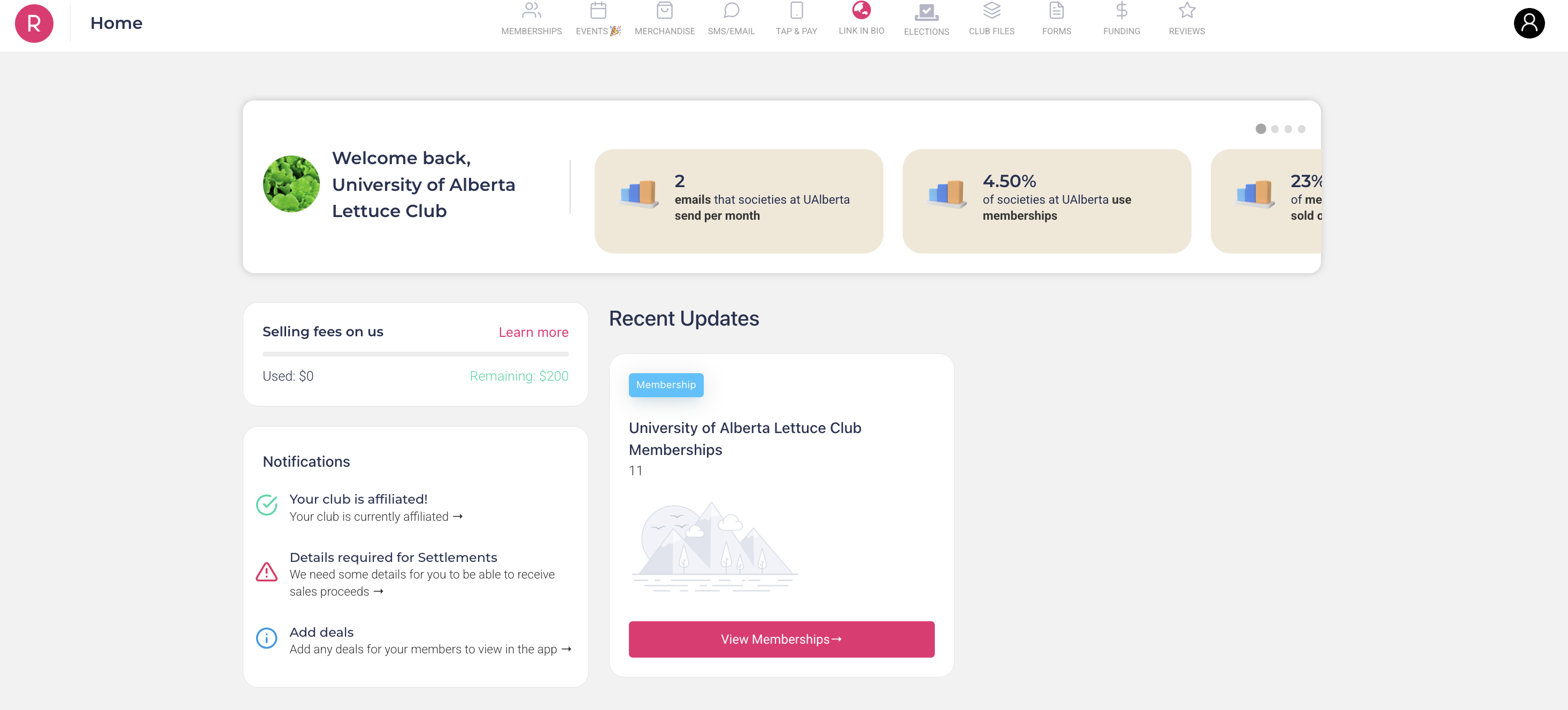
If you are setting up your executive access to your group's account, the next step is to grant yourself permission as the primary officer (President or equivalent) of the student group.
- Click on the icon in the upper right-hand corner of the clubs homepage.
- Click "Society Exec Team".
- Scroll down to the bottom table, and click "Add club executive".
- Input all information using your UAlberta email, and set yourself as President.
- As a precaution, double-check that the President role has all permissions using the top table.
Finally, you should ensure you have access by logging in to your student account.
You have now successfully set up your student account as the primary officer! You can also add other executives to the team to link their accounts to the club account. Do not share the club account password with anyone on your team who should not have full access to your club's page and features.