
Events
How to Submit an Event for Review through Rubric
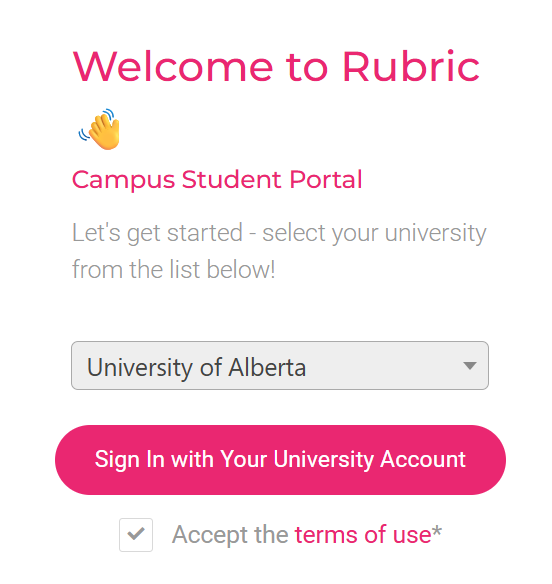
- Log in to Rubric (campus.hellorubric.com) using your CCID and password.
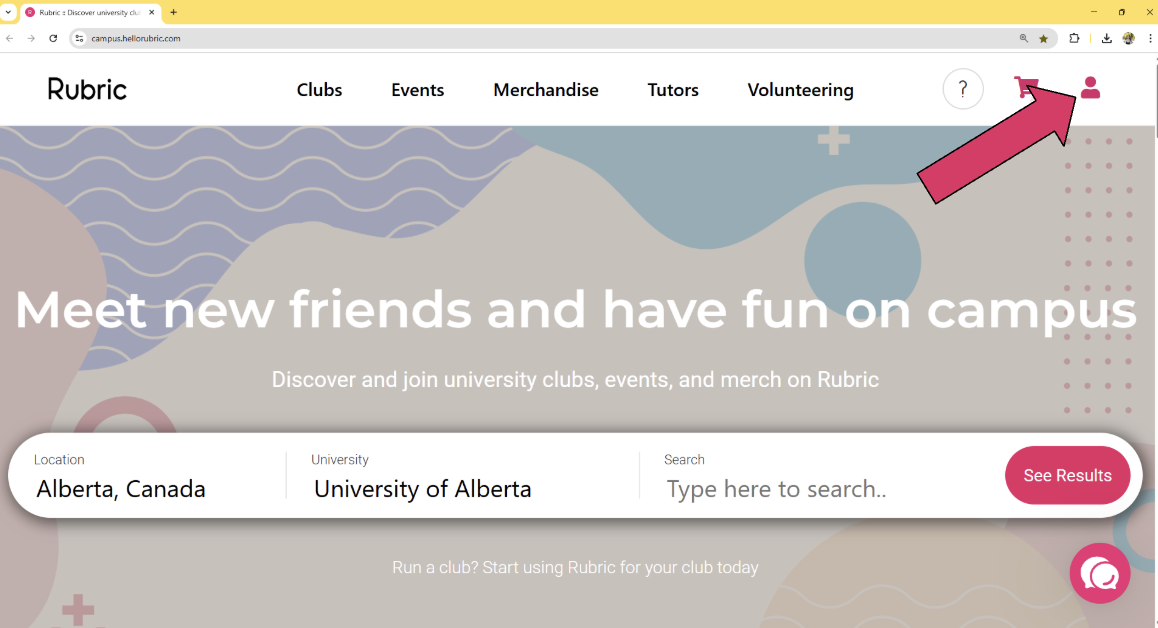
\n - In the top right corner, click on the person icon.
- Under "Switch Accounts" choose the club for which you are submitting an event. If the group you need to submit an event for is not on this list, please contact your group president to be added to the team’s executive roster.
They can update your permissions using these instructions.\n\n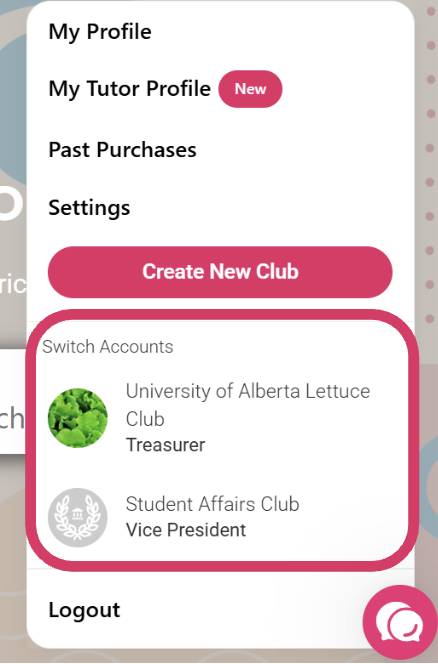
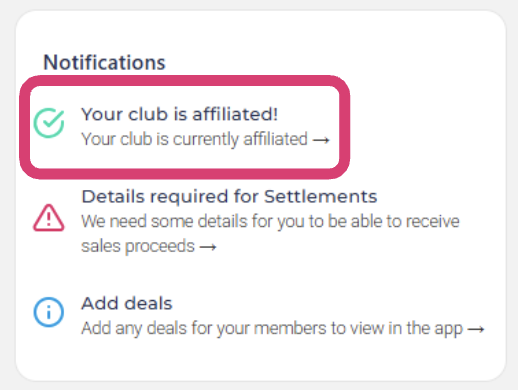
- Double-check that your student group is affiliated by checking the notifications in the bottom left corner. If your group is not affiliated, you will not be able to submit events. Contact Student Group Services for support with your student group recognition through clubs@uasu.ca.
\n - On the top menu, click "EVENTS 🎉"

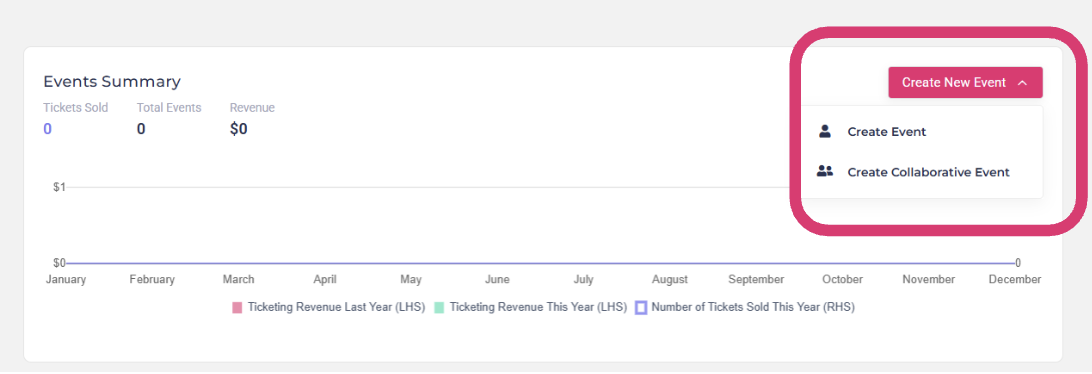
- Click "Create New Event" in the top right corner.
-
- Create Event = Hosted by a single student group
- Create Collaborative Event = Hosted by multiple student groups
-
- Follow the steps in the Rubric Event Wizard to complete the event submission form.
- On the Event Summary page click Publish to submit your event for review and approval to Student Affairs Advisors in Student Success and Experience.
Rubric Event Wizard
This section collects the details needed to advertise and promote your event through Rubric. The information you provide will be visible to students browsing upcoming events. You can also use the ticketing feature to sell tickets or to track attendance for free or non-ticketed events.
How to Make Changes to an Event Submission in Rubric
Resubmit an Approved Event
Your event was previously approved, but updates are needed. Please make the required changes and re-submit for a quick review. Follow the steps below:
-
Log in to Rubric using your CCID and password.
-
Click the person icon in the top right corner.
-
Under Switch Accounts, select the club associated with the event.
-
From the top menu, click EVENTS 🎉.
-
Under Events in 2025, find your event and click the 📝 Edit icon.
-
When the “Reapproval Required” pop-up appears, click the X to close it.
-
Make the necessary changes to your event details.
-
On the Event Summary page, click Publish to resubmit your event.
Resubmit a Pending Union Approval Event
Your event is currently under review and awaiting a response. If you need to make changes before a decision is made, follow these steps:
-
Log in to Rubric using your CCID and password.
-
Click the person icon in the top right corner.
-
Under Switch Accounts, select the club associated with the event.
-
From the top menu, click EVENTS 🎉.
-
Under Draft Events, find your event and click Edit Draft.
-
When the “Reapproval Required” pop-up appears, click the X to close it.
-
Make the necessary changes to your event details.
-
On the Event Summary page, click Publish to resubmit your event.
Resubmit a Denied Event
Your event was denied, but you can revise and re-submit it without starting from scratch. To update and resubmit for review, follow the steps below:
-
Log in to Rubric using your CCID and password.
-
Click the person icon in the top right corner.
-
Under Switch Accounts, select the club associated with the event.
-
From the top menu, click EVENTS 🎉.
-
Under Draft Events, find your event and click Edit Draft.
-
When the “Reapproval Required” pop-up appears, click the X to close it.
-
Make the necessary changes to your event details.
On the Event Summary page, click Publish to resubmit your event.
How to Create Recurring Events Using Duplicate
If you're planning an event that occurs on multiple dates (e.g. weekly meetings, workshops, or classes), you can submit each date by duplicating your original event. Follow these steps:
Step 1: Submit the First Event
-
Log in to Rubric using your CCID and password.
-
Click the person icon in the top right corner.
-
Under Switch Accounts, select the club associated with the event.
-
From the top menu, click EVENTS 🎉.
-
Click Create New Event in the top right corner.
-
Select Create Event (for single group-hosted events) or
-
Create Collaborative Event (for events hosted by multiple student groups).
Complete the event form in full.
-
You may mention recurring dates in the description for awareness,
but each date must be submitted as a separate event.
Click Publish to submit your event for review and approval.
Step 2: Duplicate for Additional Dates
-
Once the first event is submitted, you’ll land on the "Event successfully created!" page.
-
Under Event Actions, click Duplicate Event.
-
When the “Reapproval Required” pop-up appears, click the X to close it.
-
Update the duplicated event:
-
Remove “[duplicate]” from the event title
-
Change the start date and time to reflect the new occurrence
-
Make any other necessary updates (for example, if you have a different speaker, topic, or location for each week)
Click Publish to submit this new event.
Repeat these steps for each additional date.