
Club Profile & Settings
The Club Homepage
Every student group on Rubric has its own homepage, created using the club's account email. This homepage can be found on the Students' Union's Rubric, and is how students interested in a club interact with the organization.
In order to access this homepage, you can either login to the club account (which should only be done to assign the club's executives) or, an executive account. If you have yet to set yourself as a club executive, refer to this page.
To first access the club's homepage from the executive (editing) view...
- On hellorubric.com, click on the "Login" drop-down and select Students Portal.
- Login with your UAlberta email and password.
- If you are not yet set as a club executive, this won't work!
- Click on the icon in the top-right of the screen
- Click on the name of your club.
- Using the top navigation bar on the club management page, click on Link in Bio.
If done correctly, your page should look like something like this:
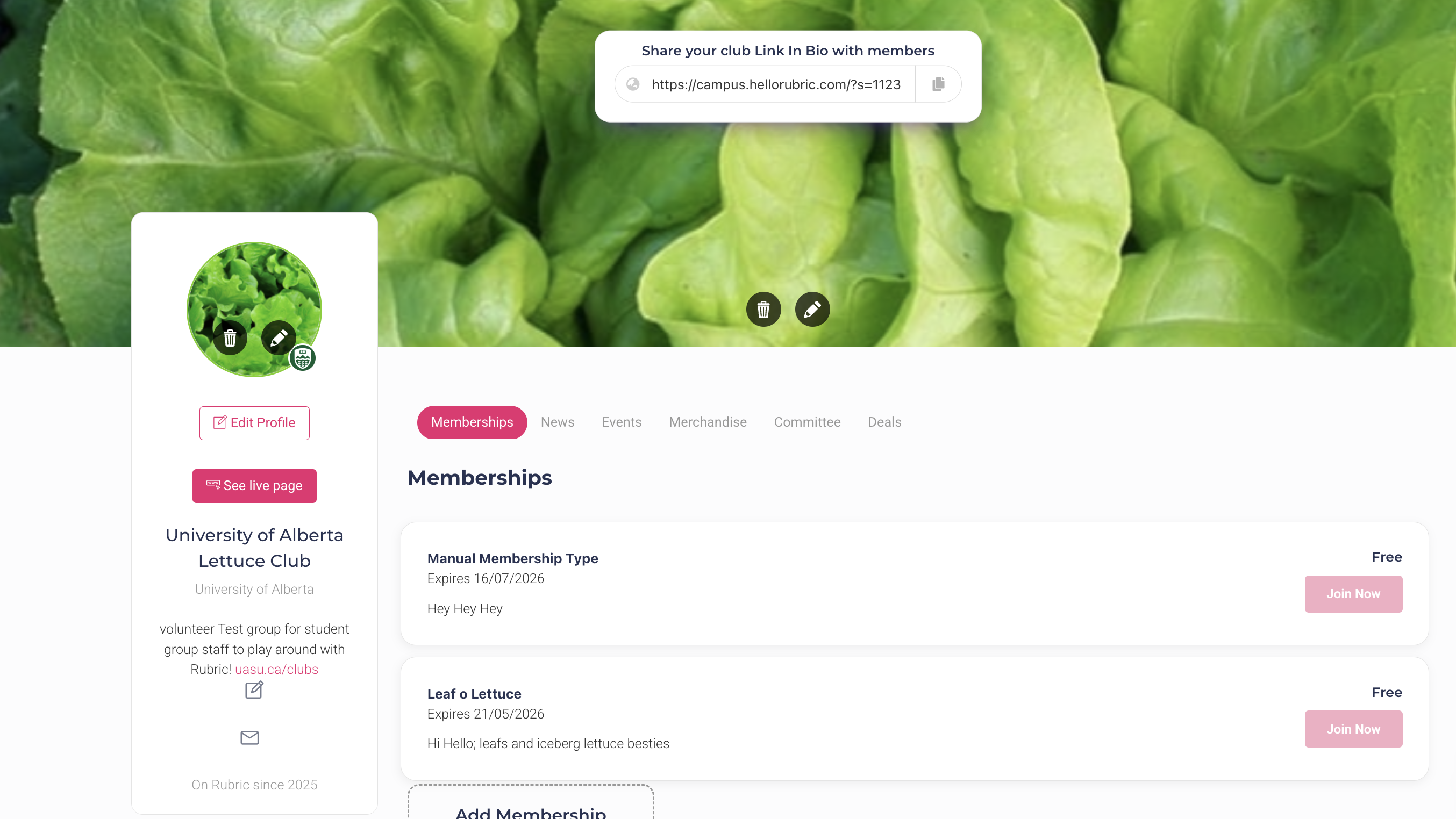
You will always be able to tell if you are viewing your homepage as an executive, by seeing the club link in the middle of the header. Along with the ability to manually edit sections. A brief explanation of each of the tabs on this screen:
- Memberships: Any membership types created and set to active are visible on your club page. This is how students can voluntary sign-up for your organization.
- News: You can post brief updates to your club homepage for people to read. It can include text, links to external websites, and a header - they appear (descending) from newest to oldest.
- Events: Any events approved by the Students' Affair Team will appear in your events tab. Upcoming events that are still taking sign-ups are available, but it also lists past events.
- Merchandise: This feature is currently disabled by our Union.
- Committee: Any member assigned an executive role on Canvas is displayed here. You can edit their profile picture, or, remove them from the public listing.
- Deals: If you have any deals for event tickets or membership prices - they appear here for students to purchase.
Editing Link in Bio
Anything you want to edit can be done using the edit button (pencil icon) under each section tab outlined in the previous section. There are three other sections of your group's homepage that are open to customization...
- Profile Picture: Using the edit button on the left-side of the screen, you can upload a PNG file for your group's profile picture. This is displayed in all elements for your group: the homepage, events, membership passes, and so forth.
- Homepage Header: Using the edit button on the top of the screen, you can upload a PNG file for your group's banner. This is displayed as the backdrop for your group's homepage.
- Homepage Bio: Underneath your group's formal title on the left side of the screen, there is an edit button. Here you can change the brief description of your club, along with linking different social medias (instagram, discord, external website, etc).
- Email: At the bottom left-side, there is an envelope icon. Students can click this to get in contact with the club account email. Ensure this is set properly in your Society Settings.
Society Settings
For those with access to the club account email, or executives with society setting permissions (we strongly suggest only the President have this permission) they are able to access the group's foundational features.
- On hellorubric.com, click on the "Login" drop-down and select Students Portal.
- Login with your UAlberta email and password.
- If you are not yet set as a club executive, this won't work!
- Click on the icon in the top-right of the screen
- Click on the name of your club.
- On the club management page, click on the black icon in the top-right of the screen.
- Click on "Society Settings"
If done correctly, you should be able to see a page similar to this:
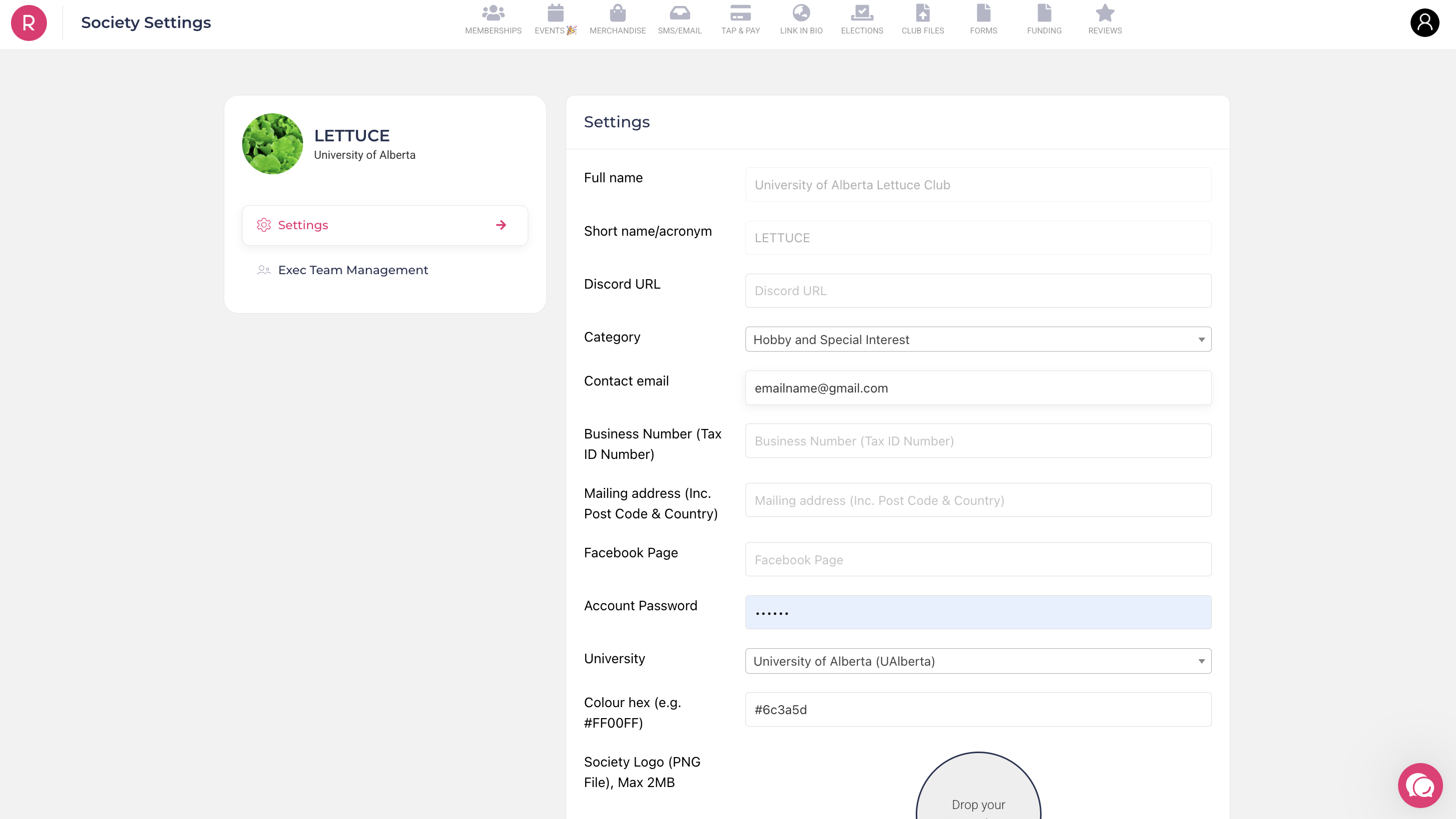
There are two side-tabs on the left side of the club settings page: Settings, and Exec Team Management. More information about the latter can be found on this page.
For the club Settings - it has three sections. There are the General Settings, the Subscription Settings, and the Bank Account settings.
General Settings
Basic features of your group can be edited and sorted on this part of the page. We have simplied the sections below:
- Full Name - The full name of the group.
- Acroynm - The shorthand name of the group.
- Discord URL - You can upload a link to a discord server where your group is hosted.
- Category - The main category for your group. This is how students might filter clubs when searching for their interests.
- Business Number - Groups that are recognized businesses in Canada are assigned a unique 9-digit identifier number. This section will be left blank.
- Mailing Address - The address for where mail will be sent for the group. This can be left blank.
- Facebook Page - You can upload a link to a FaceBook page that represents your group.
- Account Password - The login password for the club account. Do not share/change this unless you are the group's President!
- University - To always be set to the University of Alberta. DO NOT ALTER THIS or you will be locked out of your student account, and Student Group Services is unable to access it for you.
- Colour Hex - This feature has yet to be implemented on the platform.
- Society Logo - The logo of your group page, which will show up on all elements of your club (events, homepage, membership passes).
If you forgot your group password, or would like to change the full name or shorthand of your group, please contact clubs@uasu.ca
Subscription Settings