Rubric
Rubric is our home for all things student group involvement! Student group executives can complete annual registration, submit events, manage their membership, sell tickets, message their members, and more via Rubric! Check out this chapter of our resource book to help you succeed.
- Frequently Asked Questions About Rubric
- Logging in as a Club
- Logging in as an Executive
- Club Homepage & Settings
- Running Elections
- Executive Team
- Membership
- Registration Forms
- Constitution Updates
- Events
- Rubric Forms
Frequently Asked Questions About Rubric
Many clubs have similar questions when it comes to using Rubric! Student Group Services compiles all of the most frequent problems, creates simple solutions, and lists out step-by-step instructions for future reoccurrences. Check this page to troubleshoot before reaching out to our team!
Why can't I find a student group or event on the Rubric search page?
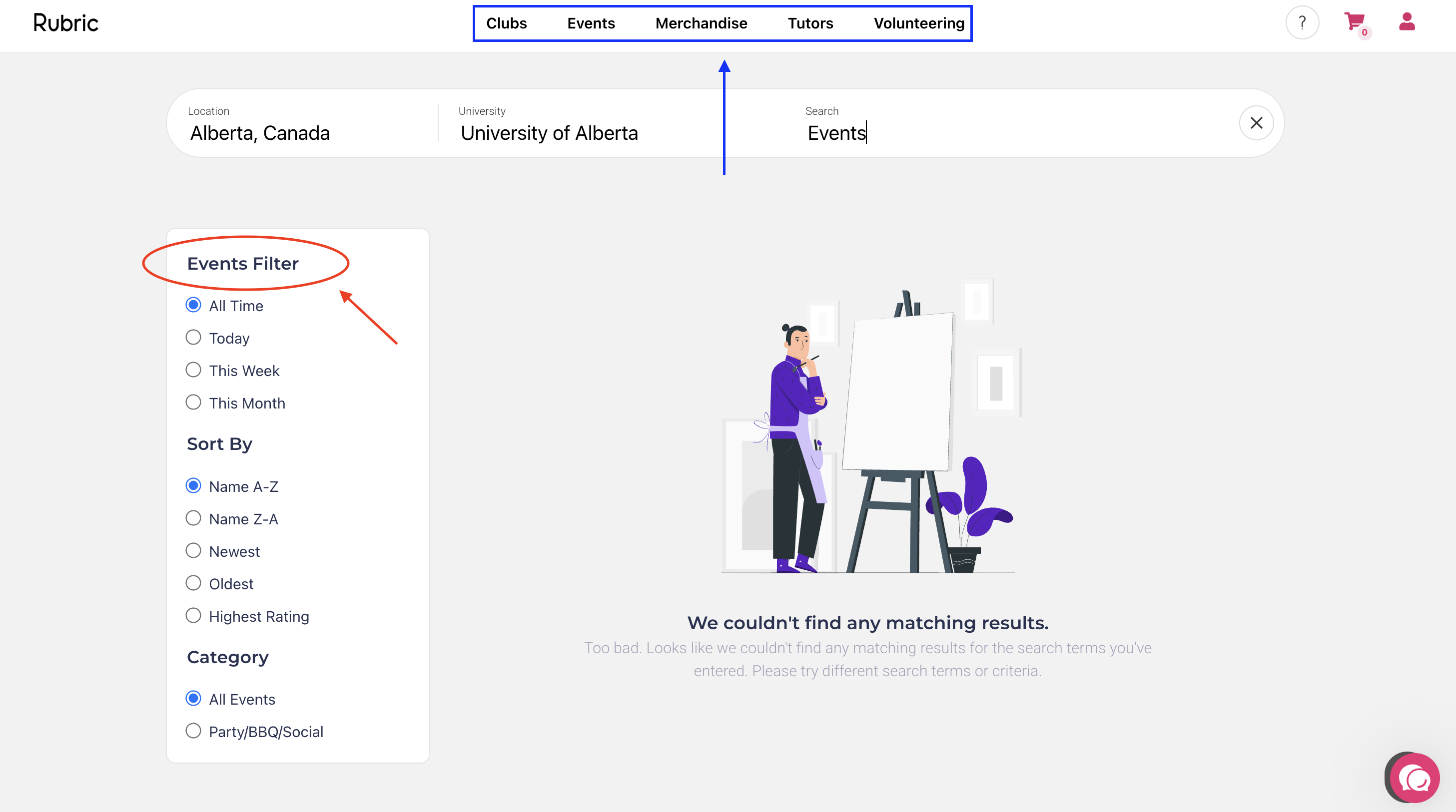
There are two search queries on Rubric: Events and Societies. First, you will need to ensure the location and University are properly selected (Alberta, Canada and the University of Alberta). To ensure you are on the right database, refer to the top of the filter on the left-side of the screen (red circle). If you want to switch between databases, refer to the navigation bar at the top of the screen (blue rectangle).
If you still cannot find a specific student group or event on the database, this is because the group is not currently affiliated, or the event has not been approved yet. Only affiliated groups and approved events will show up in the public version of the database.
I missed my group's registration deadline! What happens to our Rubric account?
If a group has not submitted its registration, or a registration is not approved by the group's affiliation deadline, the group will be disaffiliated, AKA frozen. A group that is not affiliated is unable to access privileges such as submitting events, receiving banking documentation, and tabling at Clubs Fair.
If this has happened to your group, you can be re-affiliated by submitting and receiving approval of its registration. Please note that failure to get registration approved after one year following the registration deadline will lead to your group being archived, AKA deactivated. A
What does it mean when my group is affiliated or disaffiliated on Rubric?
Rubric's terminology differs from our old platform - but the concepts are quite similar! Here's a breakdown of some terms you may encounter, and what they mean.
BearsDen Term |
Rubric Term |
Definition |
|
Active
|
Affiliated |
The status of groups that has submitted annual registration and met all the requirements of recognition, resulting in the approval of their registration. These groups are able to access all available features on Rubric and all the privileges of student group recognition. |
|
Frozen
|
Disaffiliated |
The status of groups that fail to obtain an approved registration by their affiliation deadline, which is a month following their election month. The group will have little to no access to Rubric's features until they obtain approval of their registration. You can read more here. |
|
Deactivated |
Archived |
The status of groups that have been disaffiliated for over a year following their affiliation deadline. The group's account will no longer be accessible, and they will not be eligible to reregister. You can read more here. |
Learn more about student group recognition and registration here!
I don't have access to my club's email! How do I get into my club's Rubric account?
Groups that cannot access their club email inbox will need to have their Rubric account email changed by Student Group Services. The group's President can reach out to clubs@uasu.ca to request this change so they can access the account, submit registration, and receive email updates about the status of their submission. Rubric account emails must be switched back to a club email after registration is approved.
Please note that if your group's CCID has expired, you will not be able to renew it until your registration is approved. For more information, check out this resource page. If your group email is not a group CCID email, Student Group Services cannot help recover the account.
Why am I unable to edit the name of (or delete) certain executive positions on Rubric?
Rubric has four default positions: President, Secretary, Vice President, and Treasurer. These positions cannot be deleted or have their names edited. These roles can, however, have their permissions altered, and can remain unassigned. Please note that it is mandatory for each student group to have the executive positions of 'President' and 'Treasurer' (or equivalent). If you have no use for the four default positions (i.e. they are titled differently in your constitution) keep them unassigned and they will not show up on your executive roster.
I am a group executive, and I cannot access features on my club management page.
Only student accounts that are assigned an executive role with specific permissions are able to access specific pages. Try troubleshooting these issues:
- Are you logging into the student portal, and switching to the club management page? Note that executive access is tied to your personal student account. For steps on how to navigate this, check out this page.
- Is your group affiliated? Some Rubric features are only available to affiliated student groups.
- Are you assigned as an executive? If not, your group's president can set this up by following these steps.
- Does your role have the right permissions assigned? Different executive roles may have access to different sections of Rubric. For example, only roles with “Society Settings” permissions can edit the executive team's information.
How else can I get help with navigating or troubleshooting features on Rubric?
Rubric has a built-in Help feature that can answer many common platform questions and guide you through features step-by-step! Once logged into Rubric, click the pink speech-bubble icon in the bottom-right corner of the page to access help articles and support resources. You can also check out additional information about the platform's features by visiting the rest of our Rubric resource pages.
Logging in as a Club
Rubric allows users to log in as individuals, or as clubs. If you are a group executive and your user account is connected to your club account, you are able to swap to the club account after logging in as a user. If you are a group executive and your user account is not connected to your club account, you will need to log in via the Rubric Club portal. You should avoid logging in via your club account outside of transferring primary control of the account to another user.
- On hellorubric.com, click on the "Login" drop-down and select Clubs Portal, or go to portal.hellorubric.com.
- Login with your club email and password.
- If you do not know your password, but have access to your club email, you can request a password reset.
- If you do not have access to your club email, reach out to clubs@uasu.ca to have the account email changed.
- If you are prompted to create a club account, you are using the wrong email. Reach out to clubs@uasu.ca to confirm the proper email address.
If you successfully log in, you should be on the club management page:
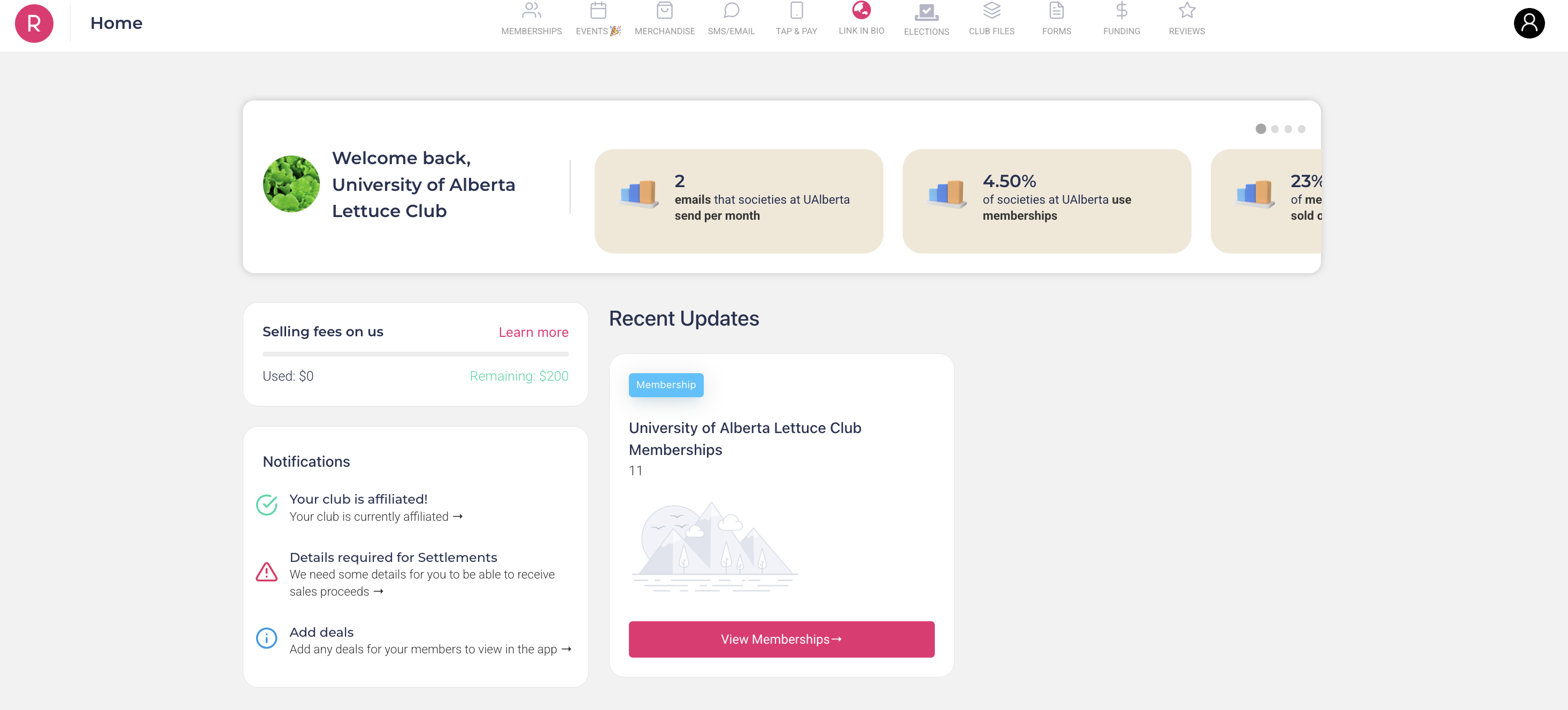
If you are setting up your executive access to your group's account, the next step is to grant yourself permission as the primary officer (President or equivalent) of the student group.
- Click on the icon in the upper right-hand corner of the clubs homepage.
- Click "Society Exec Team".
- Scroll down to the bottom table, and click "Add club executive".
- Input all information using your UAlberta email, and set yourself as President.
- As a precaution, double-check that the President role has all permissions using the top table.
Finally, you should ensure you have access by logging in to your student account.
You have now successfully set up your student account as the primary officer! You can also add other executives to the team to link their accounts to the club account. Do not share the club account password with anyone on your team who should not have full access to your club's page and features.
Logging in as an Executive
Rubric allows users to log in as individuals, or as clubs. If you are a group executive and your user account is connected to your club account, you are able to swap to the club account after logging in as a user. If you are a group executive and your user account is not connected to your club account, your group's president must assign you an executive role. They can do so by following the steps on this page.
Once you are assigned an executive role, you can log into your user account and switch to the club account.
If you successfully log in, you should be on the club management page:
Club Homepage & Settings
The Club Homepage
Every student group on Rubric has its own homepage, which is linked to the club's account email. This homepage can be found on the Students' Union's Rubric, and is how students interested in a club interact with the organization.
In order to access this homepage, log in via your user account and switch to your executive account. If you are not set up as a club executive, refer to this page.
- On hellorubric.com, click on the "Login" drop-down and select Students Portal.
- Login with your UAlberta email and password.
- Click on the icon in the top-right of the screen
- Click on the name of your club.
- Using the top navigation bar on the club management page, click on Link in Bio.
If done correctly, your page should look like something like this:

You will always be able to tell if you are viewing your homepage as an executive if you can see the club link in the middle of the header, along with the ability to manually edit sections. The following sections can be edited:
- Memberships: Any membership types created and set to active are visible on your club page. This is how students can voluntary sign-up for your organization.
- News: You can post brief updates to your club homepage for people to read. It can include text, links to external websites, and a header - they appear (descending) from newest to oldest.
- Events: Any approved events will appear in your events tab. Upcoming events that are still taking sign-ups are available, but it also lists past events.
- Merchandise: This feature is currently disabled by our Union.
- Committee: Any member assigned an executive role on Rubric is displayed here. You can edit their profile picture, biography, or remove them from the public listing.
- Deals: If you have any deals for event tickets or membership prices, they appear here for students to purchase.
Editing Link in Bio
Anything you want to edit can be done using the edit button (pencil icon) under each section tab outlined in the previous section. There are three other sections of your group's homepage that are open to customization:
- Profile Picture: Using the edit button on the left-side of the screen, you can upload a PNG file for your group's profile picture. This is displayed on the homepage, events, membership passes, and so forth.
- Homepage Header: Using the edit button on the top of the screen, you can upload a PNG file for your group's banner. This is displayed as the backdrop for your group's homepage.
- Homepage Bio: Underneath your group's formal title on the left side of the screen, there is an edit button. Here you can change the brief description of your club, along with linking different social medias (instagram, discord, external website, etc).
- Email: At the bottom left-side, there is an envelope icon. Students can click this to get in contact with the club account email. Ensure this is set properly in your Society Settings.
After all of your edits are complete, you can click the View Live Page button. This will allow you to switch to a student-facing view of your homepage!
Society Settings
For those with access to the club account email, or executives with society setting permissions (we strongly suggest only the President have this permission) they are able to access the group's foundational features. In order to access the settings, log in via your user account and switch to your executive account. If you are not set up as a club executive, refer to this page.
- On hellorubric.com, click on the "Login" drop-down and select Students Portal.
- Login with your UAlberta email and password.
- Click on the icon in the top-right of the screen
- Click on the name of your club.
- On the club management page, click on the black icon in the top-right of the screen.
- Click on "Settings"
If done correctly, you should be able to see a page similar to this:
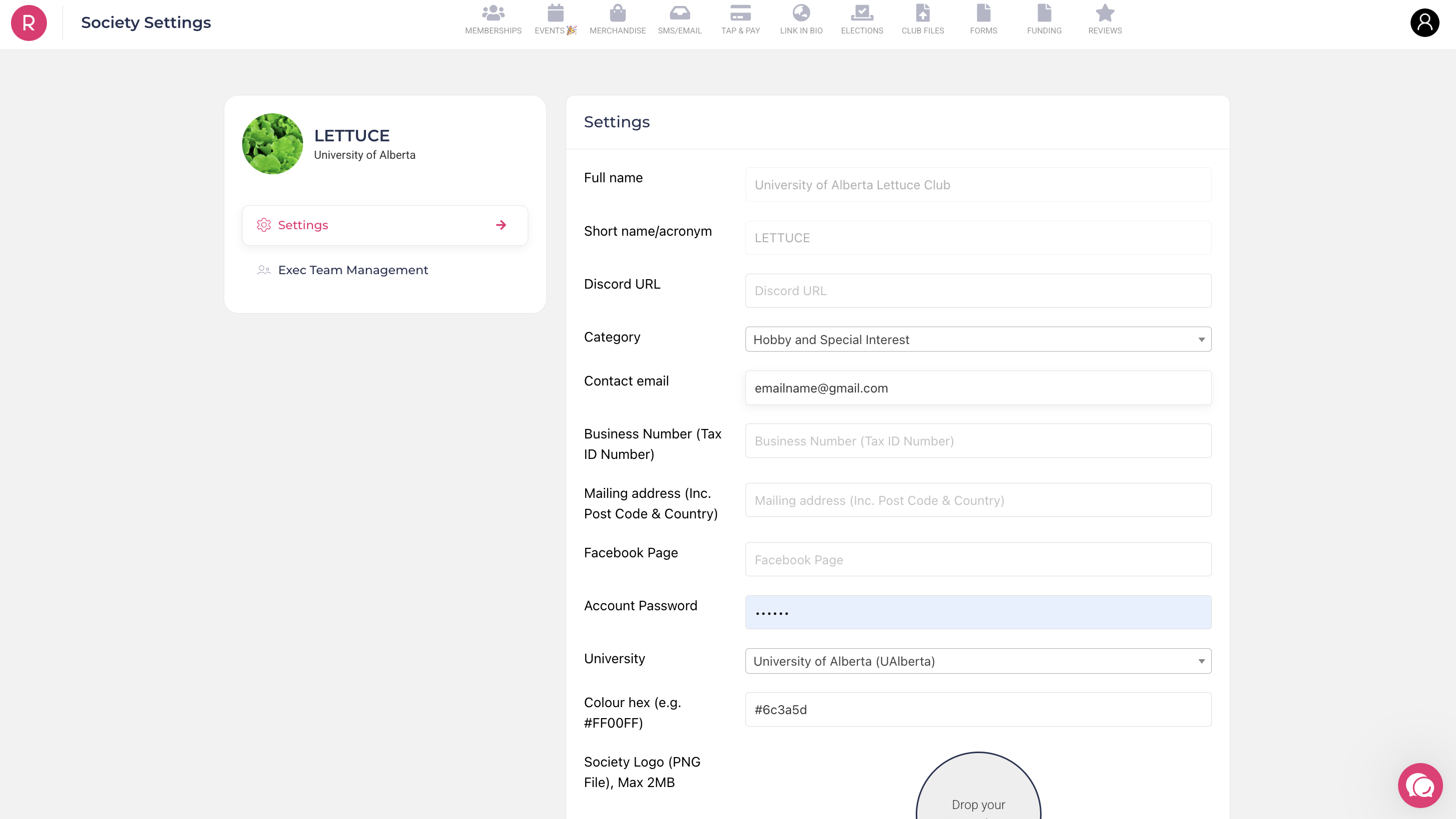
There are two side-tabs on the left side of the club settings page: Settings, and Exec Team Management. More information about the latter can be found on this page.
For the club Settings, there are three sections: the General Settings, the Subscription Settings, and the Bank Account settings.
General Settings
Basic features of your group can be edited and sorted on this part of the page. If a section is greyed out, you will need to submit an information change request form via Rubric.
- Full Name - The full name of the group.
- Acronym - The shorthand name of the group.
- Discord URL - You can upload a link to a discord server where your group is hosted.
- Category - The main category for your group. This is how students might filter clubs when searching for their interests.
- Contact Email - This is the email address that you will use to log into your club account, and communications related to your club's submissions will go to this email by default. Please ensure this is an email address that you have reliable access to, and is not an individual student's email.
- Business Number - Groups that are recognized businesses in Canada are assigned a unique 9-digit identifier number. This section will be left blank.
- Mailing Address - The address for where mail will be sent for the group. This can be left blank, or you can use the Student Life Central address.
- Facebook Page - You can upload a link to a FaceBook page that represents your group.
- Account Password - The login password for the club account. Do not share/change this unless you are the group's President!
- University - To always be set to the University of Alberta. DO NOT ALTER THIS or you will be locked out of your student account, and Student Group Services is unable to access it for you.
- Colour Hex - This feature has yet to be implemented on the platform.
- Society Logo - The logo of your group page, which will show up on all elements of your club (events, homepage, membership passes). Please ensure your logo is in compliance with trademark requirements.
Subscription Settings
Rubric automates messages (emails & SMS) to all clubs and users on their platform. Though we strongly recommend keeping these features on, groups have the right to toggle specific subscriptions at their discretion. Simply uncheck one of the messaging services, and you will stop receiving communications.
Bank Account Settings
For groups that wish to use Rubric for monetary transactions, you will need to input your banking information. Once your bank account information is set, payments will be sent to that account from ticket, membership, or deal sales.
Note that, this will not give Rubric unrestricted access to your bank account. Rather, it will work like other transaction platforms (e.g. Paypal) as a means of transferring money from one digital wallet to another.
The settlement is the schedule for when these revenues will be sent to your account; a.k.a. the payout.
-
Weekly: Receive sales proceeds every 7-14 days
-
Monthly: Get funds deposited monthly
-
Post Event: Receive funds following your event, typically within 1-2 weeks.
For membership and merchandise sales, payments are sent to your account weekly.
If you have more questions regarding how the payment system works on Rubric, please reach out to their support team at support@hellorubric.com.
Running Elections
Elections Overview
It is in a group's best interest that elections be fully managed on Rubric, for situations when results must be reviewed and verified. The platform has a variety of settings to ensure that voters can democratically engage with their clubs, and that individuals overseeing the elections can abide by processes outlined in a group's constitution.
For a deeper understanding of democratic procedures and how to abide by student group policies when conducting an election/by-election, refer to these resources.
Creating an Election
-
Login to your student account via hellorubric.com
-
Click the “Login” drop-down and select Student Portal. Login with your student email and password.
-
Note that, you must be assigned an executive role with election permissions on Rubric to be able to complete this task.
-
-
From the top navigation bar, select Administration. Under the Leadership section, select Elections. This will open the Elections Manager Overview page.
-
To see past elections and data, scroll down to the table at the bottom of the page.
-
To create a new election, click on the “Create Election” button on the top-right of the screen.
-
It will appear in the Active Elections table at the top of this page for future edits once launched.
-
-
-
Input the basic Election Information to create your election.
-
This includes the name of the election. We recommend the following:
-
[Club Name]: [Election Type] - Semester, Year
-
Election types are typically annual or byelection.
-
For example, Lettuce Club: Annual Elections - Fall 2025
-
-
-
The time window for voting. Including the start and end dates.
- Double-check these details before launching the election, as changes cannot be made once voting period has started without deactivating the election.
-
The results release date.
-
-
Optional: Select a Returning Officer.
- You may assign one or more Returning Officers to oversee and manage the election.
- Returning Officers should be impartial and not have a conflict of interest in the election.
-
For advanced options, there are several additional settings. Review each option and enable it where appropriate for your group’s election procedures - we strongly recommend the first two be enabled.
One Win Per Candidate When enabled, a candidate who wins one position will not be able to win another position in the same election. Enable this if your constitution or election procedures prohibit candidates from holding more than one elected position. Anonymous Votes Keeps individual voting choices hidden from election organizers. Once enabled, this setting cannot be turned off. This must be enabled for student group elections, as elections are required to use a secret ballot. SSO Login Requires voters to authenticate using their institutional login before accessing or submitting the ballot. This option is currently not available. Membership Voting Restricts voting to students who hold an active membership. You may require either all memberships or select specific memberships that are eligible to vote. -
Proceed to the (optional) voter group settings. This will allow you to create cohorts of voters that can then be assigned certain votes limited to their group. Some examples are as follows:
-
-
A delegate representing an off-branching student group represented on your council should only be voted on by members of that branching organization.
-
A first year representative vote should only be available to members in the First Year voter group.
-
-
If everything goes well, you should be brought to the Election Management page:
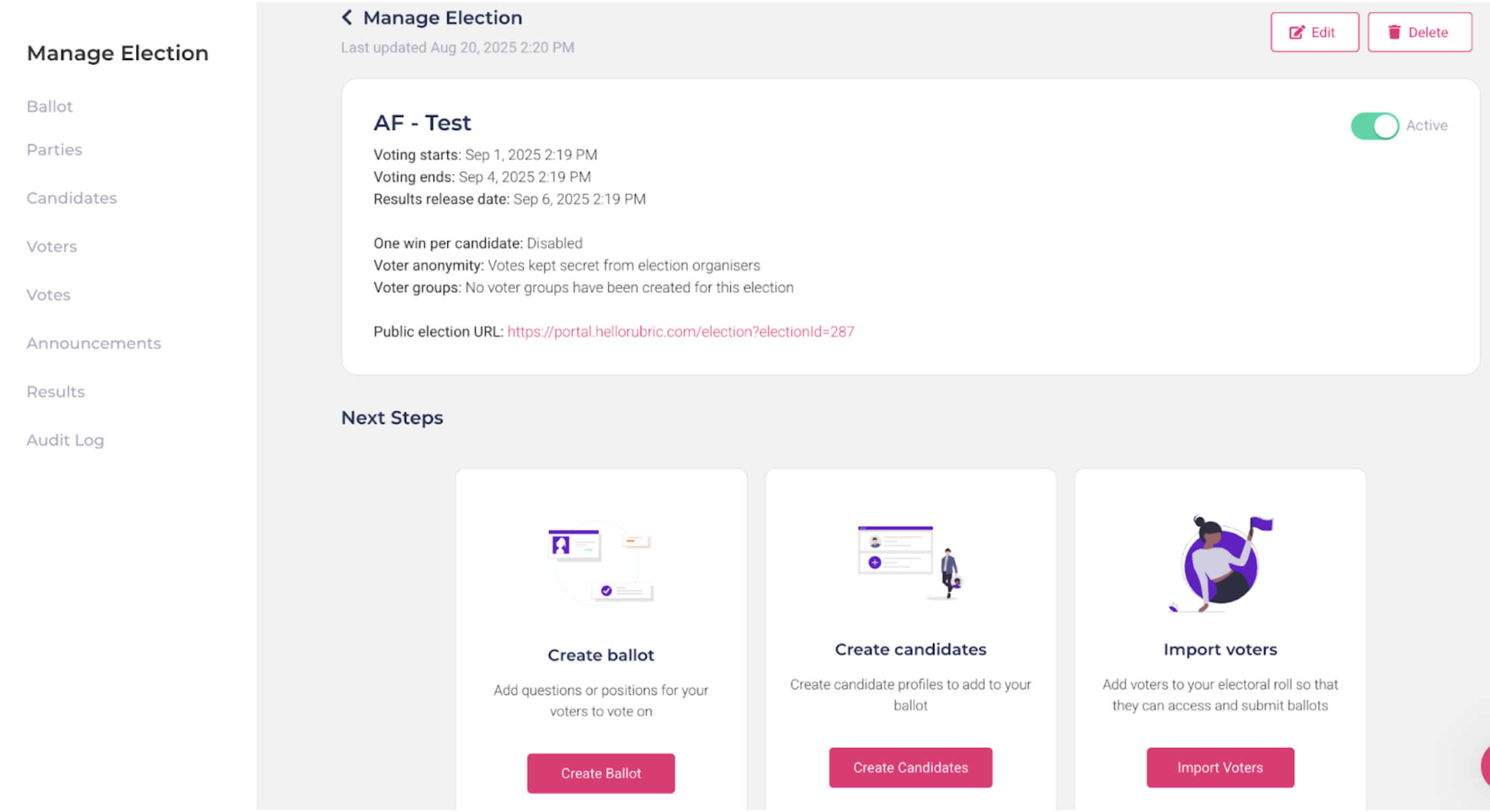
At this point, your election will be considered 'active' by default. You should turn it off while you set up the ballot and voter list.
Managing an Election
There are two main areas involved in setting up an election on Rubric: ballot and voter management, and election logistics. Each area should be reviewed and completed before the election is launched.
Creating the Ballot
To create a ballot, click Create Ballot in the left-most section at the bottom of the Election Management page. Rubric uses a drag-and-drop ballot builder, allowing you to add, arrange, and customize different voting elements based on your group’s needs.
The ballot header is a brief introduction to your members, including the title of your election (set in step one) and a description. Things that may be important to include in your election:
-
A brief (1-2 sentences) note, including a greeting, and emphasis of the importance of the electoral process.
-
A notice of the timeline of the elections. Including when the ballot opens, closes, and results are set to release.
-
A list of how a vote is considered invalid. This could include casting multiple votes, sharing the voting link with non-members, incorrectly stating your full name or registered member email, etc.
-
Note that these must be listed in your constitution or election package (formal documentation which is voted on) to be enforceable.
-
The ballot body is where you get to customize your ballot according to how your members are voting, and what your members are voting for. To insert these elements, simply click and drag them into the ballot in the centre of the screen, releasing them and ordering them as you prefer.
A full detailed overview of the different drag-and-drop elements your group could utilize can be found from the official Rubric help page. |
The usage of Student Bank Details and Student ID is strictly prohibited under the University of Alberta FOIP policy. Do not use these elements under any circumstances.
Once your ballot is complete, click Preview Ballot to ensure it is ready to be published. After that, don't forget to save the ballot. You'll return back to the Election Management page.
Creating Candidates
To create a candidate, start by clicking the “Manage Candidates" button at the bottom of the Election Management page. The four elements of a given candidate profile are summarized as such:
- Name - Should include first name (preferred) and last name of a candidate.
- Photo - Should be a professional photo for easy identification, screened by your Elections Officer.
- [Optional] Candidate Party - If the candidate is affiliated with a party or slate, select the appropriate party. Parties are used to group affiliated candidates and are separate from voter groups, which determine which voters are eligible to vote for specific positions.
- [Optional] Candidate Description - A brief description of the candidate, such as their experiences within the group, year of study, passion for the organization, etc.
Candidates can also be created when creating the ballot. You can also edit and delete candidates in the manage candidates page - but note that deleting a candidate will remove them from the ballot entirely, which may break your ballot if you try to publish it.
Importing Voters
In order for your election to run, eligible voters must be able to access the ballot and submit their votes. From the Election Management page, select Import Voters. There are two ways to add voters:
- Import Voters — This is the recommended method for adding multiple voters. Click Import Voters in the top-right corner and use the CSV template provided by Rubric to upload the required voter information.
- Add Voters — This is the manual method. Add voters individually by entering their name and email, then assign them to the appropriate voter group if applicable.
- If you add anyone as a test voter, make sure to remove all test voters before calculating and publishing results so that only legitimate votes are included in the final tally.
Election Logistics
Now that we've set up the ballot, candidates, and voters, we can move on to the election logistics. To start, return to the Election Management page of your election:
On the left-hand side you have the Manage Elections overview. Selecting ballot, candidates, or voters will take you to the same management pages as described above. Below is a brief summary of the other (new) logistical elements:
| Parties |
Allows you to Create Parties (cohorts of individuals, such as a slate or Co-Executives) for the ballot.
|
| Votes |
Once a vote is cast, you can see the full list of voters who completed the ballot.
|
| Announcements |
There are three types of announcements that may be edited and sent out...
You can either edit a pre-existing template linked to the Elections Feature, or edit directly via the Campaign feature. These can also be schedule-sent in advance! |
Once all of this is done, you can then set your election to Active by clicking on the toggle on the top-right side of the Election Management page! |
Announcing Results
Once the voting window has ended, the student group will need to validate and announce the results to their membership.
It is the group's responsibility to ensure all votes are valid, and the group meets Quorum and Majority. Please refer to the terminology page for more information.
- From the Election Management page, select Results from the left-hand menu.
- Click Count Votes in the top-right corner.
- Rubric will calculate the results for each position based on the ballot question type and counting method selected during ballot creation.
- Review the calculated results before publishing them.
- When the results are ready, click Publish Results.
- Published results will only become publicly accessible after the election's specified results release date.
- Once published, Rubric will generate a unique results link that can be shared with members.
Appeals & Auditing
In the case when an individual calls for an appeal (a reconsideration of the election procedure and/or election results) it is important to access information that supports the initial investigation. Here are a few key details that Rubric provides groups to ensure elections are run fairly:
Audit Log
Any single individual who accesses the Elections Feature on a group page is recorded in the Audit Log. Including the portal used to gain access, the type of action, the person's email, and a time stamp. Some key disclaimers:
- Administrators (SGS/UASU Staff) can access a group's elections via the administrative portal. These individuals are specifically marked as Union users.
- Access is when an individual only opens a page without interacting with any elements. Create or Update is when an individual physically alters the information/permissions of the election itself.
- If you are looking into the audit of a specific individual, you can Filter the table by that individual's email and see their full history on the elections page.
Appeal processes are required to be outlined in a student group's constitution, this should be referenced first in the case of an appeal. If additional support is needed, contact Student Group Services at clubs@uasu.ca.
Common Troubleshooting
With the Elections Feature on Rubric offering so many options, lots of student groups tend to run into roadblocks. Below are a few common issues, and their solutions. In the event that additional support is needed, contact Student Group Services at clubs@uasu.ca.
- Ensure that your election dates (announcement, voting window, results) are at least 24-hours in the future.
- Ensure that the Voters, Ballot, and Candidates field have all been set up. These are the bare minimum requirements for your election to be published.
Executive Team
Updating Your Executive Team
On Rubric, executive management is only available through two paths. The club account, or an individual with an executive role that has society setting permissions.
If you have not been set as an executive with society settings permissions, or this is your first time accessing the group page, you will need to use the club account. If you have been set as an executive with society settings permissions, you can switch to the club account via your student account and edit the executive team.
You will first need to login to your account on hellorubric.com.
- If you are logging in with the club account - use the Club Portal from the Login drop-down.
- If you are logging in as a user - use the Student Portal from the Login drop-down.
- From there, click on your icon in the top-right corner, and switch to the club management page.
- Click on the black icon in the top-right corner of the screen.
- Select "Society Exec" from the drop-down list.
There are two tables in this section. The top table is for creating or editing pre-existing roles.
- Click "Create New Role" for new positions.
- Fill in the fields - the name of the position (per your constitution) and the permissions of the role.
- Any given role can be assigned to multiple people (i.e. two Co-Presidents can both be given the same permissions, using one President role).
- You can also edit the current positions.
- Click on the three dots located to the right side of a position, and click "Edit" position.
- The one roles that cannot be deleted, or have their name changed, are the default ones set by Rubric - President, Treasurer, Secretary, and Vice President.
- Click on the three dots located to the right side of a position, and click "Edit" position.
The bottom table is for assigning executive roles to your members.
- Click "Add club executive" to assign a new role to a member.
- This field requires their name, UAlberta email, and the role assigned - do not add their student ID number.
- Click the three dots next to a listed member to change their assigned role, or remove them from the executive list.
These individuals can now access the club management page by logging into their student accounts and switching the page view. The level of access a given executive is permitted is based on their permission setting.
Executive Role Permissions
Below you will find a comprehensive breakdown of what permissions, when assigned to an executive role on Rubric, give what level of access to your organization's page.
|
COMMUNICATIONS |
Communications gives access to messaging features on Rubric (SMS/Email in the top navigation bar). This includes sending out mass messaging to members, and tracking the engagement of your audience. |
|
MEMBERSHIPS |
Memberships gives access to managing who joins your group, and their information (Memberships in the top navigation bar). This includes tracking retention, creating and editing membership types, importing/exporting rosters, ending memberships, and seeing individual member information. |
|
SOCIETY SETTINGS* |
Society Settings gives access to the administrative features of your group (Society Settings from the top-right icon). This includes editing the executive team, executive permissions, the club's primary email, the icon of your club, and the bank account details. |
|
UNION FORMS |
Union Forms gives access to all forms involving the Student's Union (Forms in the top navigation bar). This includes registration submissions, verification letter requests, newsletter submissions, event submissions, and club information requests. You can also view all past submissions to any union forms. |
|
EVENTS |
Events gives access to the event details of your club (Events in the top navigation bar). This includes recently hosted event details, selling tickets, rejected event details, revenue and spending, attendance, and more. |
|
MERCHANDISE |
This feature has yet to launch on our Union's Rubric. |
|
SETTLEMENTS |
Settlements gives access to the organization's financial information (Funding in the top navigation bar). This includes all payments, pending payments, or reimbursements made to the club using Rubric. Note that this feature can only be used when bank information is inputted to the society settings. |
*We strongly recommend that the society settings only be given to the President (or equivalent) for the organization's security purposes.
Membership
Membership Overview
Rubric gives organizations the opportunity to manage multiple tiers of membership with different requirements, and registering processes. This page will teach you how to navigate membership features.
To access the membership information of your student group, log in via your user account and switch to your executive account. If you are not set up as a club executive, refer to this page.
- On hellorubric.com, click on the "Login" drop-down and select Students Portal.
- Login with your UAlberta email and password.
- Click on the icon in the top-right of the screen
- Click on the name of your club.
- Using the top navigation bar on the club management page, click on Memberships.
If done correctly, the page will look like this:
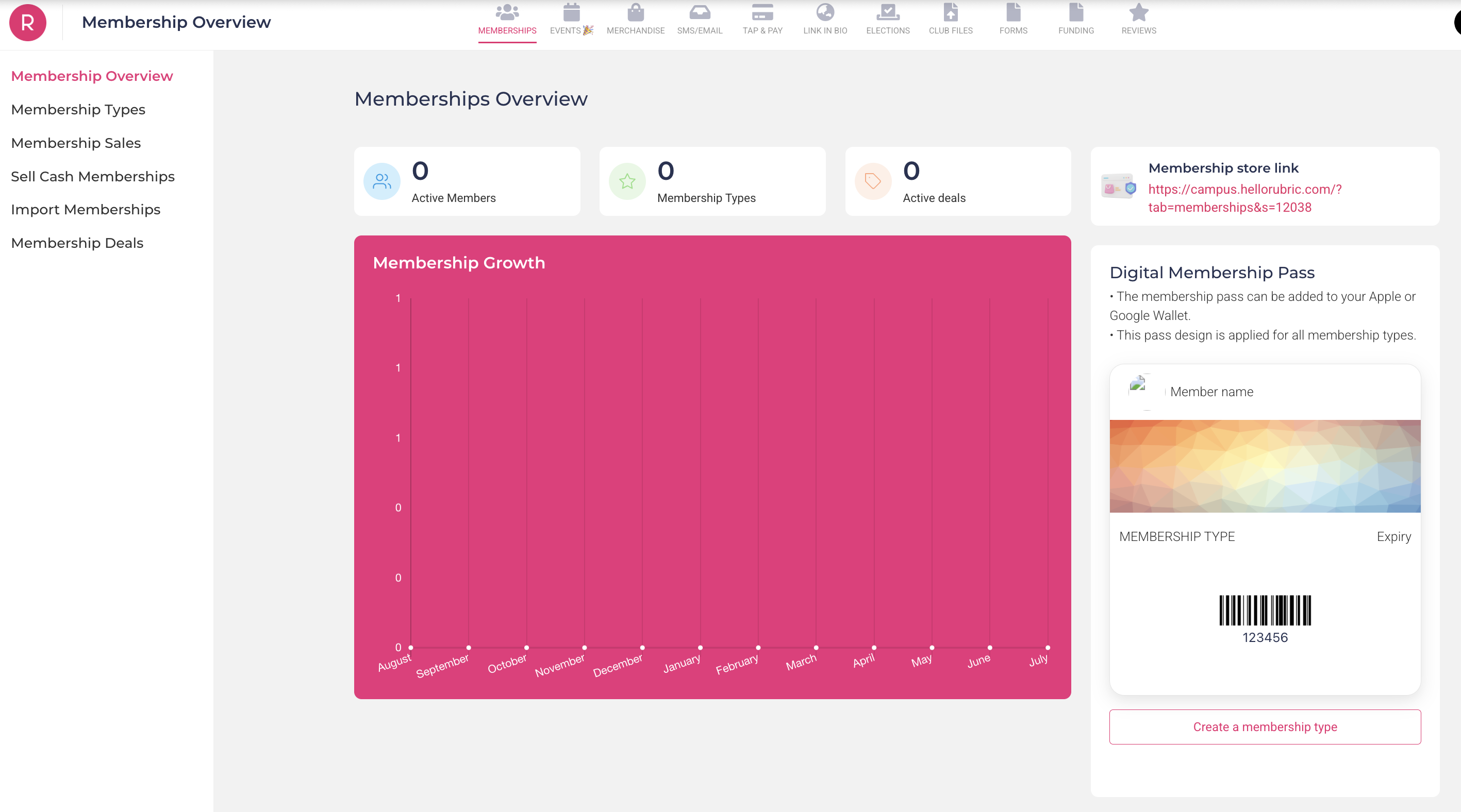
This is your Membership Overview page. It shows a plethora of information, including:
- Digital Membership Pass - This digital membership pass is downloadable by all your active members of your club, and can be used for attendance at events or meetings. More details can be found further down.
- Membership Growth - This graph shows the number of members that register with your club in a given year, broken down month-by-month.
- Membership Total - The number of "Active" members is the current, total members in your group.
Membership Management
Organizing your membership is broken down into three key elements: making membership types, editing membership types, and managing your membership information.
Creating/Editing Membership Types
When first creating membership types, we need to consider a few different factors:
- What membership types are outlined in our constitution? (General, Executive, Associate, etc)
- How do our members engage with our organization? (Volunteers, Event Attendees, etc)
- How do we want to attract interested people to our club? (Prospective Members, Newsletter Subscribers, etc)
Once you have an idea of how you want to manage your members, you can create a new membership type:
- On the left-bar, click on "Membership Types"
- Above the display table, click on "Create Membership" and select "New Membership Type"
When creating your memberships, there are a couple different fields that need to be established:
- Name - The formal title of a given member. This is what will be displayed on their Digital Membership Pass.
- Validity - The length of time a membership is valid for from the date of purchase/joining. Memberships cannot last longer than one year.
- Note that you will use the custom field setting to set the end-date.
- Membership Price - The cost of being this type of membership. Groups can elect to have membership be free ($0.00) or they can set a price.
- Note that Rubric has transaction fees that can either be paid by the group, or it can pass onto the buyer.
- Membership Description - The general information about this type membership, what benefits it includes, and what responsibilities this membership type has. It is recommended that groups have them written in their constitution.
NOTICE: Groups that are found with a type whose validity exceeds one year will have members of that type be disqualified from their total member count.
There is also a Membership Sign-Up Form that members will fill out when becoming a member of a given type.
- Required Information - All membership types will require the Name, Email, and Enrolment Status of a member.
- Optional Information - Rubric has pre-made form questions (i.e. degree, year of study) that groups can opt-in to use for their membership types. Under no circumstances can you request Student Identification Numbers (ID).
- Additional Questions - You can add customizable questions (optional or mandatory) at the end of the form. Including drop-downs, checkboxes, multiple-choice, or text-based answer fields.
- Terms & Conditions - A brief description outlining the terms & conditions of memberships, and acquiring this type of membership. We recommend student groups add their expectations for good standing here.
At the end of the membership creation page, there is a Manual Membership Approval toggle. This means that when people choose a specific type of membership, you need to approve them from the main membership page before they are added. Note that this toggle cannot be turned off after the membership is created (or vice versa).
Once you finished creating a membership type, it will appear in the original Membership Type chart:
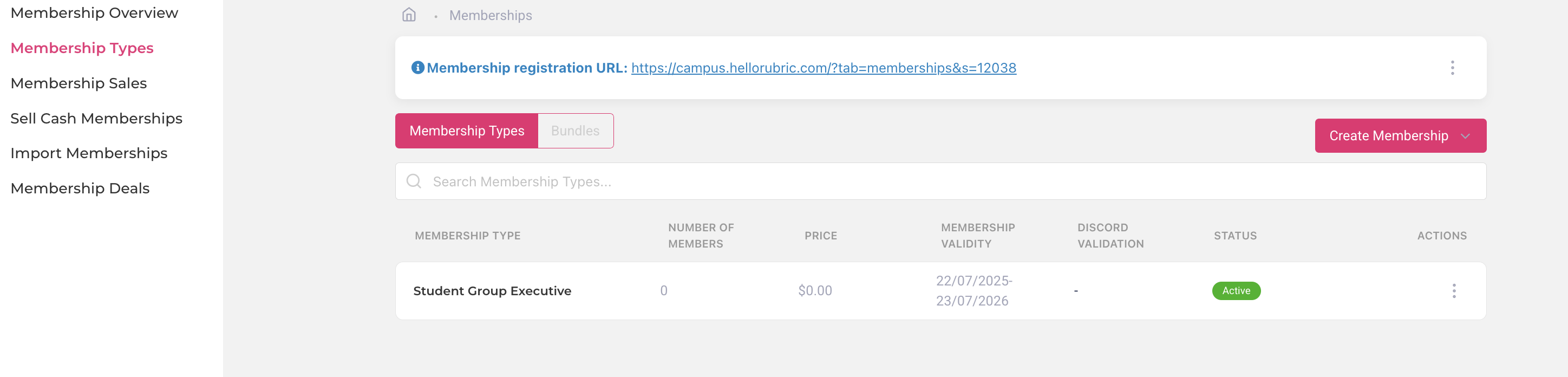
The status of a membership type indicates whether or not someone can view it on your homepage. This can be toggled using the "ACTIONS" feature on the far right-hand side of a membership type.
- Active - Members are able to view the membership and join (or request to join) using your homepage.
- Hidden - Members are only able to join this membership if they are imported or invited. Further instructions on how to do so are down below.
If you want to edit a membership type, click the three-dots on the furthest right-hand side, and click "Edit".
Managing Members
Now that you have membership type(s), you can add members. There are three distinct ways people can join a student group: voluntary sign-up, mass upload, or individual upload.
First, lets start with voluntary sign-up.
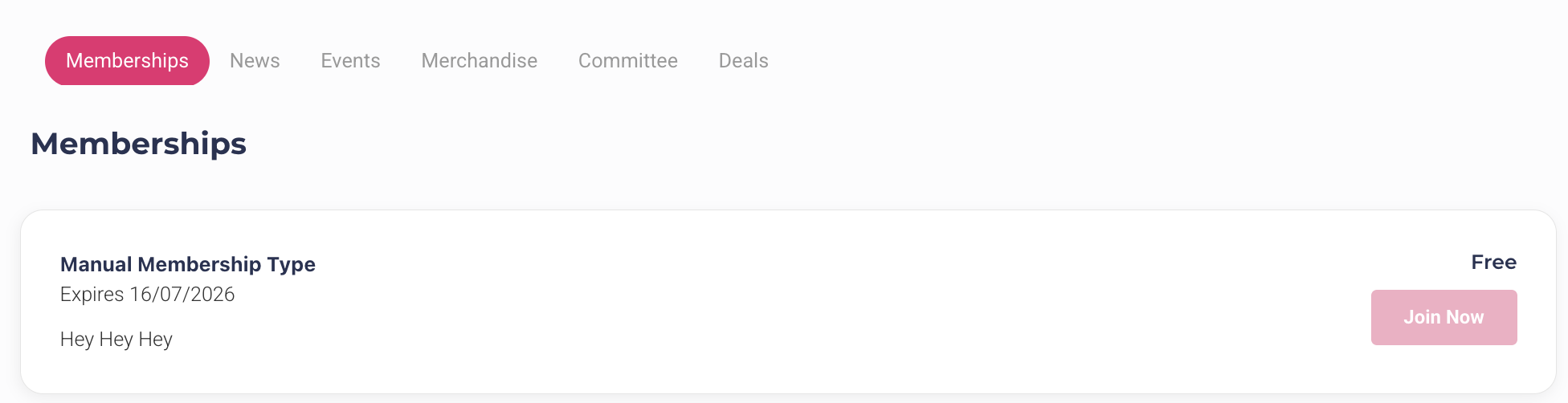
For almost all groups, they will need to have a way of manually adding either an entire group of members or a few individuals to their General Membership Tier. Typically, groups have requirements for being a General Member (e.g. attendance, enrolment status, degree program, fee payment etc) that should be confirmed before someone is granted a certain tier of membership. Once you've confirmed someone is eligible to join a certain tier, you can upload them individually to that tier.
If you want to individually upload members...
Note that, for any fields that are mandatory for a membership type (e.g. mandating students report their degree) students must fill out and accept an invitation email in order to be marked as “approved” rather than “pending”. This will be sent to the email of the member.
If you want to upload an entire roster of members....
If you cannot view members in the “approved” section, they might be in the “pending” tab.
You can find a General Member Template at the bottom of this page.
Member Information
Collecting and managing the information of your members is an essential process for all organizations, not just student groups, which leads to higher rates of longevity. Rubric provides four crucial features: managing and filtering membership information, manually adding individual members, importing member rosters, and exporting membership rosters.
To find your current list of members and their information...
- Click on the "Memberships" tab in the top navigation bar.
- On the left-bar, click on "Membership Sales"
- If you have current Active members, you should be presented with a table.
There are a few prominent details this table present represented by the table columns. Each column (described by their header) represents the information for any field (question) in any membership type. All membership types will have the mandatory fields, but the more complex the membership, the more information Rubric will store.
- The name, email, and enrolment status are all mandatory.
- The membership ID is a randomly generated number for that membership type when assigned to an individual.
- The payment method represents how the membership was processed (Rubric, manually, cash/in-person, etc).
- The status changes only if the membership has a fee; when the payment is processed, it is considered paid.
- All free memberships will be marked as paid when fully approved.
- The date purchased and date updated indicate when the membership was first assigned, and last edited.
- Additional columns will be generated for memberships with additional questions.
Within the furthest left column of the table, there is an Action field. There are three options depending on the membership type:
- Edit - Allows you to edit the fields and information of a given membership. Note that some fields are not able to be edited if they are self-reported rather than selected.
- Cancel Membership - Allows you to remove someone's membership. These memberships will be moved to the expired tab above the table.
- Approve Membership - Allows you to approve someone's membership if the membership type is set to manual approval.
To see memberships that are pending or expired, be sure to toggle to the right tab (as illustrated in the red box below).

Above the tables is the "Search" bar - which allows you to filter for any information within a given membership. This includes things like the name of a membership type, the name of a member, the year of study, paid or upaid memberships, and so on. At the bottom of the table, you can export (download) the table, and Rubric will provide the filtered version if there is a query in the search bar.
Digital Membership Pass
The Digital Membership Pass is downloadable for all members of your student group, regardless of their membership type. It can be added to digital wallets as a means of attending events and tracking attendance; it includes their unique member ID number.
This feature is also customizable. To edit your Digital Membership Pass...
- Click on "Membership Overview"
- On the right-hand side, click on "Edit Pass" under the draft membership pass.
From there, you can edit a few key features:
- Colours: Including the background, font, and border colours. This is done using hexadecimal colour codes.
- Logo Image: The logo of your group, or an adjacent one for members.
- Strip Image: The header that is branded across the top-half of the membership pass.
- Note that for images, Rubric only accepts PNGs.
- Group URLs: You can link your group's Rubric page, or other external pages.
Don't forget to save all your changes before exiting the page!
Membership Templates
Here you can find membership type templates suitable for Rubric, with additional comments explaining the rationale. Student groups are encouraged to utilize these templates as they set up or reorganize their student group pages on the platform.
Prospective Member
Having a type for prospective members is a great way of having a low-commitment trial for students interested in joining your organization. This is also a great way to ensure that your General Members are formally recognized in an invite-only type, and are distinctively separate from people who do not meet requirements of membership as outlined in your constitution. You can also opt to transfer prospective members who do not meet requirements of general membership to the Associate Member type, as outlined below.
| Validity - 1 Semester |
To avoid a backlog of interested people who initially sought out your club but lost interest, set the membership to last a short time. Then, those who meet membership requirements by the end of the semester can be transferred over to your general member type. Anyone who does not meet the requirements can renew prospective member status, or change to an associate member. |
|
| Price - $0.00 |
Charging a fee for a prospective membership will (most likely) lead to a lack of interest. The price is up to the discretion of the student group; note that Rubric has a transactional fee for any purchases on their platform. |
|
| Description |
Descriptions should match what is outlined in the constitution of the organization. An example is as follows:
Interested in joining our student group? Prospective members get all our communications for upcoming ways to get involved - including volunteering, events, and more! Sign up now to find out if [Student Group Name] is the right fit for you! Please note that prospective members do not have voice or vote in group matters until they become general members. |
|
|
[OPTIONAL] Terms & Conditions |
You can add a terms and conditions if you feel the need to stress any additional information, or conduct of students. An example is as follows:
By obtaining this membership, you agree to abide by our group’s Constitution, and all policies of the University of Alberta and [Student's Union/Graduate Student's Association]. Failure to abide by these policies may result in the following but not limited to: bad standing, suspension of membership, and expulsion from the group. In order to upgrade to general membership status, you must be currently enrolled as a University of Alberta students, attend at least one event in the past semester, and be in good standing. |
|
| Viewing - Active |
Set the membership to active so anyone on Rubric can view and join automatically! |
|
| [OPTIONAL] Additional Questions |
Additional questions are a great way to understand the general reputation of your organization. Here are some examples:
Additional questions are great if you have more information required for recognizing your members, or for getting some statistics for your club! Some examples include:
The additional questions can be formatted depending on the answers you are interested in obtaining (multiple choice, select-all, dropdown, short answer, etc). We strongly recommend making these sections optional. |
|
General Member
General Members are a type of membership that includes all University of Alberta students who are members (including executives). There can be additional requirements to become a general member of the group as outlined in your constitution.
| Validity - 1 Year |
Members must re-register with their student groups on an annual basis. All membership types must expire after one year. |
|
| Price - $0.00 |
The price is up to the discretion of the student group; note that Rubric has a transactional fee for any purchases on their platform. |
|
| Description |
Descriptions should match what is outlined in the constitution of the organization. An example is as follows: |
|
|
[OPTIONAL] Terms & Conditions |
A terms and conditions section is a great way of outlining good & bad standing for your student group. An example is as follows: |
|
| Viewing - Hidden |
General Membership is for verified members of your student group that meet the requirements as outlined in your constitution. If you hide the membership, only people you invite can join. |
|
| [OPTIONAL] Additional Questions |
Additional questions are great if you have more information required for recognizing your members, or for getting some statistics for your club! Some examples include:
The additional questions can be formatted depending on the answers you are interested in obtaining (multiple choice, select-all, dropdown, short answer, etc). |
|
Associate Member
Having a type for associate members is a great way of keeping track of individuals who might not want to be general members, or might not even be eligible to become general members, but want to stay in the loop with what your club is up to.
| Validity - Custom Range |
Set the range to a custom date that expires when your annual event calendar resets; a good date would be the date of your upcoming annual elections, or the end of the academic year. Please note that if you allow lifetime associate memberships, you may have to remove folks if your membership ratio no longer satisfies the requirements of student group recognition. |
|
| Price - $0.00 |
Charging a fee for an associate membership will (most likely) lead to a lack of interest. |
|
| Description |
Descriptions should match what is outlined in the constitution of the organization. An example is as follows: |
|
|
[OPTIONAL] Terms & Conditions |
A terms & conditions section is a great way of outlining the expectations of volunteers:
By obtaining this membership, you agree to abide by our group’s Constitution, and all policies of the University of Alberta and [Student's Union/Graduate Student's Association]. Failure to abide by these policies may result in the following but not limited to: bad standing, suspension of membership, and expulsion from the group. |
|
|
Viewing - Approval [OPTIONAL] |
Set the membership to manual approval so anyone can show interest in joining the group, but will need to have it be approved (application looked over) before they are accepted. |
|
| [OPTIONAL] Additional Questions |
Additional questions are great if you have more information required for recognizing your members, or for getting some statistics for your club! Some examples include:
The additional questions can be formatted depending on the answers you are interested in obtaining (multiple choice, select-all, dropdown, short answer, etc). |
|
Registration Forms
This page will show you how to access club registration on Rubric as a re-registering student group, along with the preliminary steps necessary to format all required information for the form.
This is considered step 5 in the process outlined on this page. Please ensure all previous steps are completed before beginning the registration form.
Ensure that you have already set yourself as the primary officer (President) for the club. If you have yet to complete this step, refer to this page.
The first step is to login to your student account on hellorubric.com.
- Click the "Login" drop-down and select Student Portal.
- Login with your UAlberta email and password.
- Click the icon in the upper right-hand corner.
- From the options, click on the name of your student group under "Switch Accounts".
- You will now be viewing your club page as a club executive.
If done correctly, you should be able to see the form submission page, with the "Submit Form" button:
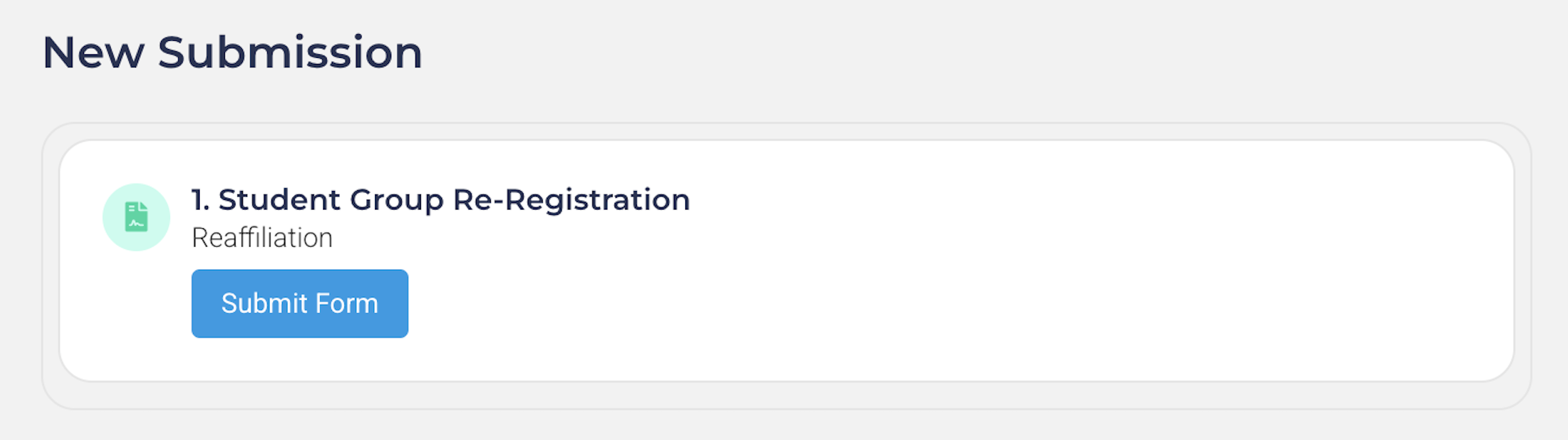
Groups will need to receive full approval on their registration BEFORE their deadline. Otherwise, the group will be automatically disaffiliated and lose access to Rubric's features, including but not limited to: event submission, elections, etc.
A detailed breakdown of your registration deadline and submission window can be found here.
|
ELECTION MONTH |
REGISTRATION OPENS |
REGISTRATION DEADLINE |
|
January |
January 1st |
February 28th |
|
February |
February 1st |
March 31st |
|
March |
March 1st |
April 30th |
|
April |
April 1st |
May 31st |
|
May |
May 1st |
June 30th |
|
June |
June 1st |
July 31st |
|
July |
July 1st |
August 31st |
|
August |
August 1st |
September 30th |
|
September |
September 1st |
October 31st |
|
October |
October 1st |
November 30th |
|
November |
November 1st |
December 31st |
|
December |
December 1st |
January 31st (Following Year) |
An example is as follows:
- An Election Month indicates that your elections are held sometime within that month - in this example it is April.
- Your group's registration form will open at the beginning of your election month, two months before your deadline - in this example it would be April 1st.
- Your deadline is set to the last day of the month following your election month. You must have your registration fully approved by that day - in this example, it would be May 31st.
Registration submissions that do not meet requirements will be denied for resubmission without possibility of extending the original deadline. We highly recommend student groups submit their registrations as soon as possible in case it is initially denied. To optimize your student group registration:
- The outgoing President (or equivalent) can prepare certain sections of the registration beforehand, such as renewing insurance, or receiving a licensing agreement for trademarks & logo.
- Holding your elections within the first week of your election month. This allows for additional time to obtain approval, compared to holding your elections at the end of the month.
- Prepare transition files and meetings. This will help your student group pass on knowledge and processes to avoid incomplete or rushed registrations. An example of transition documents can be found here.
| For more information about registration, including how to start a new group, visit the Student Group Recognition section of our resource book. |
Constitution Updates
Student Group Constitutions
All student groups are required to have a suitable constitution, as determined by Student Group Services. If you need an introduction to constitutions, an explanation of what they are used for, or a template to reference, check out our constitution resources.
According to the bylaw 220 and Student Group Operating Policy, your constitution must:
- Outline the purpose of group;
- Outline the membership eligibility and standing
- Outline membership types
- Outline the executive and membership roles and responsibilities;
- Demonstrate that the group functions in a democratic manner by outlining the elections process;
- Outline financial requirements that meet or exceed the University of Alberta Students' Union's requirements as outlined below, and address what will happen to any assets, financial or otherwise, if the group should cease to exist for whatever reason.
If your group would like to make amendments to your constitution, these must be reviewed and approved by Student Group Services before your group votes to approve any changes. Changes to the constitution will not be held in force until approved by Student Group Services.
Should an issue arise where a constitution must be consulted only the approved constitution will be held in force. Wherever a constitution comes into conflict or is silent, the relevant regulations of the highest legislative body take precedence. Please see the student group operating policy for more details on what constitutes an acceptable constitution.
Requesting Review of Constitution Amendments
The first step to request review of your constitution amendments is to login to your student account on campus.hellorubric.com
- Click the "Login" drop-down and select Student Portal.
- Login with your UAlberta email and password.
- Click the icon in the upper right-hand corner.
- From the options, click on the name of your student group under "Switch Accounts".
- You will now be viewing your club page as a club executive.
If you do not have access to switch to your club account, please have your group president follow the instructions on this page to assign you as an executive.
Then, you will need to complete an information update request form.
Any changes submitted through this form must be reviewed and approved by Student Group Services (SGS) prior to being implemented. Please allow at least two business days for your request to be processed; constitution amendment review may require additional time. A member of the Student Group Services team will review your submission and follow up with an approval or additional guidance, if needed.
Finalizing Constitution Amendments
Once your constitution amendments are approved by Student Group Services, you may then bring the proposed amendment(s) to a general membership vote. After being passed by your members, the change may be formally implemented by uploading the new constitution to your group's Rubric account.
Events
How to Submit an Event for Review through Rubric
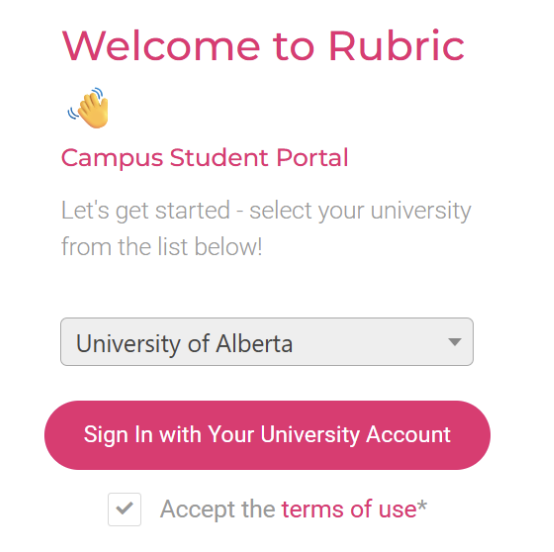
- Log in to Rubric (campus.hellorubric.com) using your CCID and password.

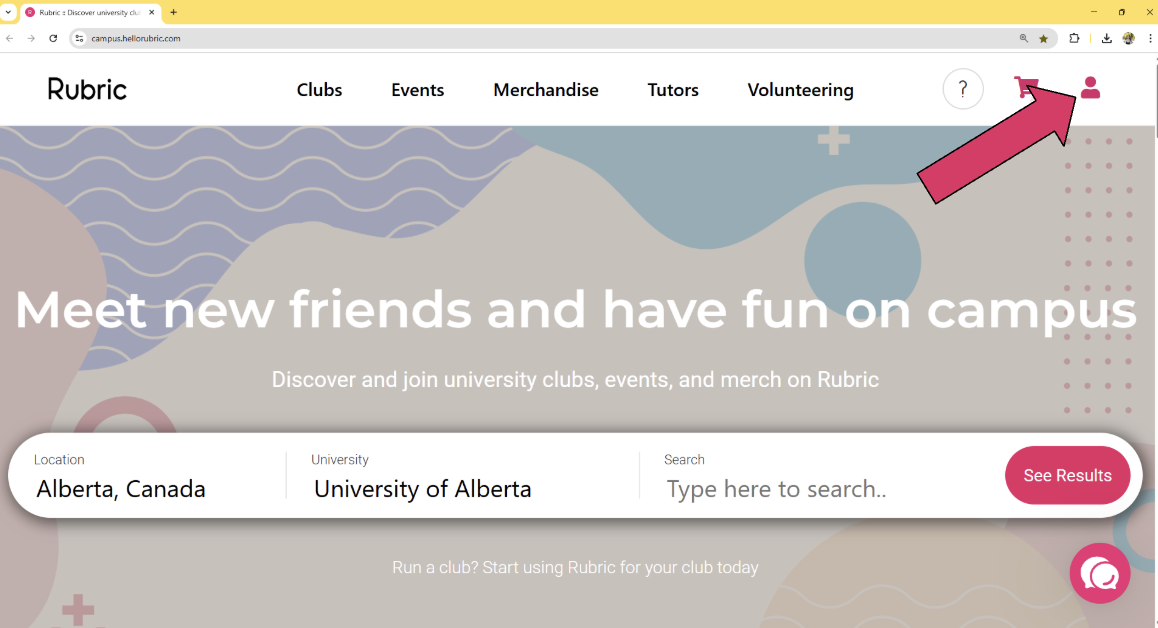
- In the top right corner, click on the person icon.

- Under "Switch Accounts" choose the club for which you are submitting an event. If the group you need to submit an event for is not on this list, please contact your group president to be added to the team’s executive roster. They can update your permissions using these instructions.

- Double-check that your student group is affiliated by checking the notifications in the bottom left corner. If your group is not affiliated, you will not be able to submit events. Contact Student Group Services for support with your student group recognition through clubs@uasu.ca.

- On the top menu, click "EVENTS 🎉"

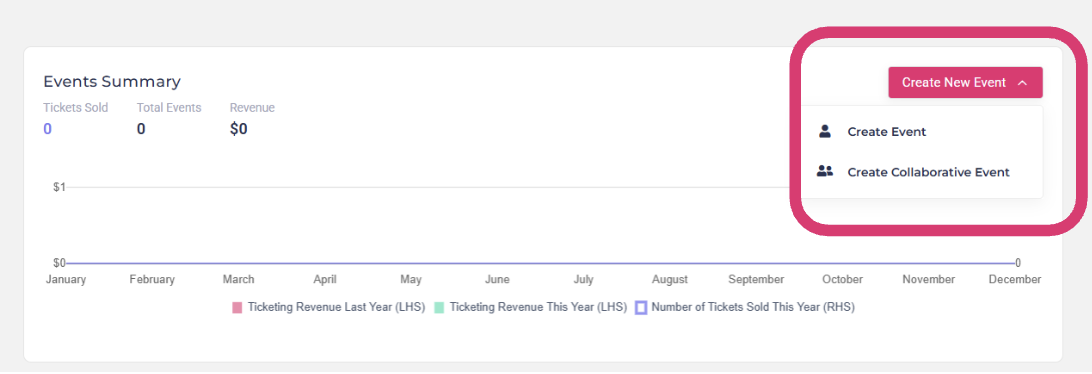
- Click "Create New Event" in the top right corner.
-
- Create Event = Hosted by a single student group
- Create Collaborative Event = Hosted by multiple student groups

-
- Follow the steps in the Rubric Event Wizard to complete the event submission form.
- On the Event Summary page click Publish to submit your event for review and approval to Student Group Services.
Rubric Event Wizard
This section collects the details needed to advertise and promote your event through Rubric. The information you provide will be visible to students browsing upcoming events. You can also use the ticketing feature to sell tickets or to track attendance for free or non-ticketed events.
How to Make Changes to an Event Submission in Rubric
Resubmit an Approved Event
Your event was previously approved, but updates are needed. Please make the required changes and re-submit for a quick review. Follow the steps below:
-
Log in to Rubric using your CCID and password.
-
Click the person icon in the top right corner.
-
Under Switch Accounts, select the club associated with the event.
-
From the top menu, click EVENTS 🎉.
-
Under Events in 2026, find your event and click the 📝 Edit icon.
-
When the “Reapproval Required” pop-up appears, click the X to close it.
-
Make the necessary changes to your event details.
-
On the Event Summary page, click Publish to resubmit your event.
Resubmit a Pending Union Approval Event
Your event is currently under review and awaiting a response. If you need to make changes before a decision is made, follow these steps:
-
Log in to Rubric using your CCID and password.
-
Click the person icon in the top right corner.
-
Under Switch Accounts, select the club associated with the event.
-
From the top menu, click EVENTS 🎉.
-
Under Draft Events, find your event and click Edit Draft.
-
When the “Reapproval Required” pop-up appears, click the X to close it.
-
Make the necessary changes to your event details.
-
On the Event Summary page, click Publish to resubmit your event.
Resubmit a Denied Event
Your event was denied, but you can revise and re-submit it without starting from scratch. To update and resubmit for review, follow the steps below:
-
Log in to Rubric using your CCID and password.
-
Click the person icon in the top right corner.
-
Under Switch Accounts, select the club associated with the event.
-
From the top menu, click EVENTS 🎉.
-
Under Draft Events, find your event and click Edit Draft.
-
When the “Reapproval Required” pop-up appears, click the X to close it.
-
Make the necessary changes to your event details.
-
On the Event Summary page, click Publish to resubmit your event.
How to Create Recurring Events
If you're planning an event that occurs on multiple dates (e.g. weekly meetings, workshops, or classes), you can submit each date by creating a recurring event, without having to fill out multiple submission forms. Follow these steps:
|
Visit the Rubric Help Centre for more information!
|
For all further information, please refer toStudent Group Event Submission & Form Preview Guide |
Rubric Forms
On Rubric, Student Group Services offers a plethora of Forms to assist with ongoing group operations. Including changes to constitutions, banking letters, granting requests, and more. On this page, we'll be going over how to submit forms and the different kinds of forms offered.
It is highly recommended that groups have email notifications ON for Rubric updates. This ensures that groups recieves their requested documents or important messages from Student Group Services regarding submissions.
Navigating Forms
To access the Forms feature for your student group, log in via your user account and switch to the club management page. If you are not set up as a club executive, refer to this page.
- On https://campus.hellorubric.com/, click on "Login"
- Login with your UAlberta email and password.
- Click on the icon in the top-right of the screen
- Click on the name of your club.
- Using the top navigation bar on the club management page, click on Administration, then click All Forms.
If done correctly, the page should look something like this:
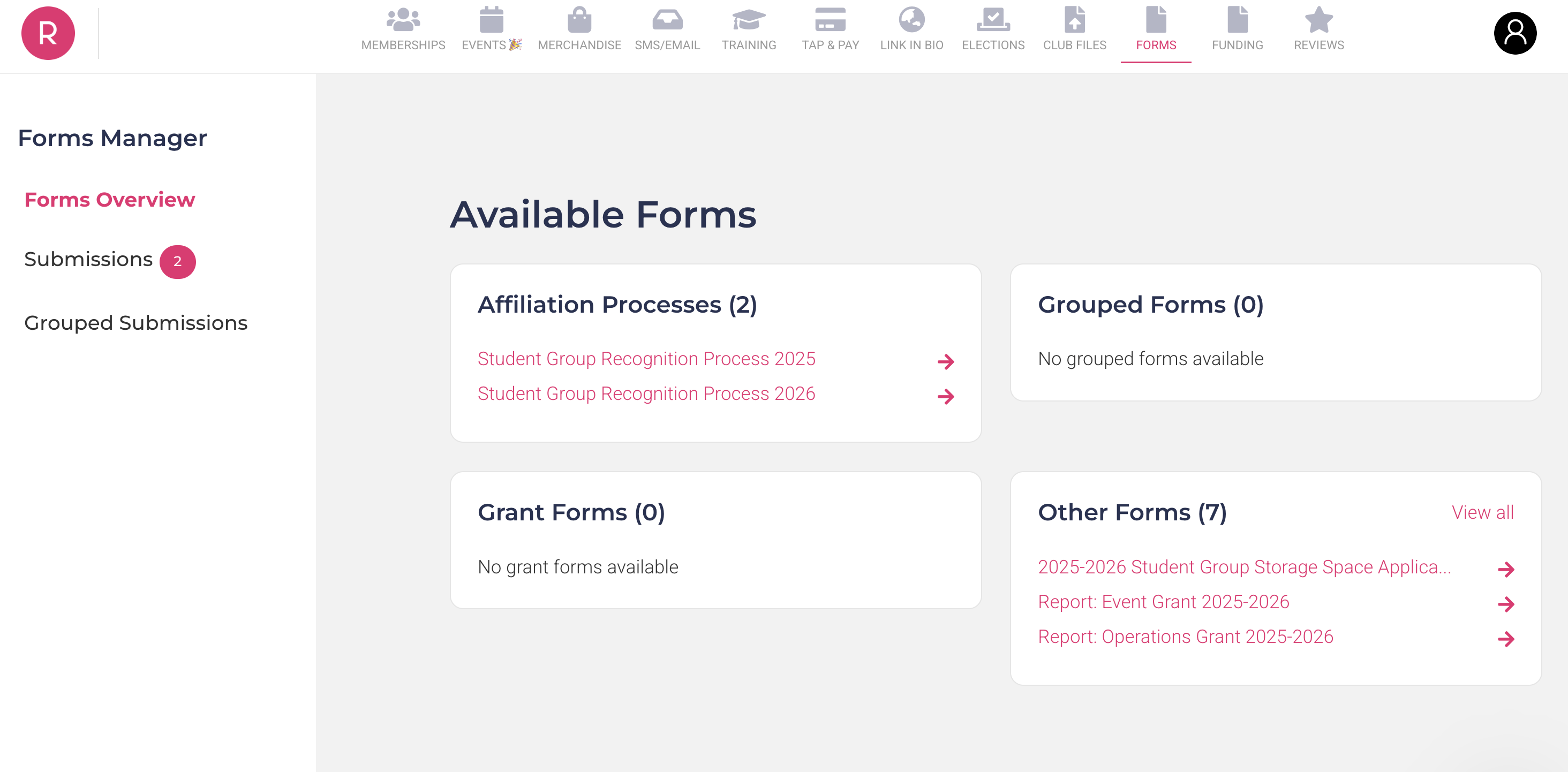
The forms we'll be discussing are part of the "Other Forms" category. For details regarding re-registration (affiliation) forms, feel free to check out this page.
Finding Drafts & Pending Submissions
Once you've clicked on a form - Rubric will create a unique submission ID (multi-digit number) that can be accessed at any point. Regardless if it's only a draft, or has been fully submitted. To access these forms...
From there, you will have multiple tables displaying your different submissions. Whether they are drafted, approved, pending or denied. For the latter, a new specialty table labeled 'Action Required' will show up at the top of the screen. You will be able to view the denial, as well as any comments left by SGS staff members.
Now that we know how to submit and find previous submissions, lets go over the various forms available on Rubric.
Student Group Information Update Request Form
Student Groups that wish to update integral information about their organization, such as their constitution, name, or election month, can submit an Information Update Request (IUR) to ensure their changes are in compliance with all relevant policies.
Once you have accessed the Forms module on Rubric, click on 'Student Group Information Update Request Form'. The first question in the form will prompt you to select the purpose of your submission - you can select multiple at once.
(1) Organization Name (or) Acronym
If a group wishes to change their organization name or acronym (or, logo) they need to first submit a request to Student Group Services to ensure it meets compliance. During review, it is important to note that any usage of University of Alberta Trademarks must be reviewed by the Office of Trademarks & Licensing (T&L).
To help your submission go faster, or pre-emptively before your annual re-registration, check out this page for what expectations exist for student groups. As well, how to get in contact with the Office of T&L.
(2) Banking Details
If a group has major banking detail updates (such as primary bank location changes) they must report it via the IUR form.
(3) Election Month
If a group is wanting to switch their annual election month, they need to do so in a timely manner dependant on their current election month. For example, a group with April elections that submits an election month switch during the month of April will still need to complete an approved re-registration before their current deadline. Failure to do so will temporarily disaffiliate a group, suspending student group benefits until the re-registration is approved. An election month switch only affects the following (next year) deadline.
When considering changing your election month, it is extremely important to consider all elements regarding transitional periods. Some questions to ask your team before making the decision:
- How will this change reflect your recruitment of new members?
- How will this change influence the effectiveness of transitioning new incoming executives?
- How much buy-in and initiative will your members showcase in this new month?
- Are there any additional calendar-conflicts (i.e. finals, events, etc) that may decease the band-width available to host elections?
(4) Constitution Update Request Form
If a group is requesting alterations to their last approved constitution, they must submit a document indicating such changes using the IUR. Those changes must be highlighted or clearly formatted. If anything is out of compliance, an SGS staff member will deny the submission with a link to comments of required changes. Any group found to have made changes to their constitution without approval will have those changes not upheld.
Verification Letter Request Form
Student Groups that have outlined financial practices (written in their constitution) are able to request Verification Letters to assist with transitions, grant reports, or general banking processes. Student Group Services reserves the right to request additional information as needed to fulfill the request, or to clarify any points of concern.
Once you have accessed the Forms module on Rubric, click on 'Verification Letter Request Form.' The second question in the form will prompt you to select the purpose of your submission - you can select multiple at once. Although each of these options have their own required information, if any additional fields are needed, you can fill out the section at the very end.
(1) Opening a Bank Account
If your affiliated group has yet to open a community bank account, you can request one via this option. Note that you must have a minimum of two, no more than four signing authorities. These privileges must be assigned to elected, student-held (executive) positions. The bank must be selected prior to your request, and we recommend reaching out to bank branches (such as BMO, Scotiabank, CIBC) to see what options they offer.
It is also important to note that if you are transferring between banks - you will need this letter, as well as an additional 'Other' letter to express to the old banking branch that the account is to be closed.
(2) Transferring Signing Authorities
On an annual basis, incoming executive will need authority over the group's bank account to complete financial processes. This can be requested after a group's annual re-registration is completed, or in specific circumstances (i.e. a by-election) so long as there is evidential support.
When submitting this request, ensure you have the full legal name of the outgoing signing authorities, as well as the incoming signing authorities. Banks typically request signatures of all parties, as well as government-issued ID to verify the executives.
(3) Award/Granting Applications
For groups looking for external revenue streams such as UASU or GSA grants, SGS can provide a letter outlining the group's affiliations status with the University of Alberta. Note that, this is only offered to currently affiliated groups. As in, a group's most recently completed annual re-registration must have been approved within the last year.
(4) Other
For any other banking inquiries not outlined by the three previous options, groups are encouraged to fill out this form with any applicable information.
Other (Conditional) Forms
A variety of forms are available dependant on the time of year, your group type, or general availability. A brief outline of the most frequently seen 'other' forms has been featured below for reference:
| Student Group Storage Space Application |
There are two types of storage applications. Annual long-term storage and Conditional short-term Storage. Both are subject to availability and are only for UASU-affiliated groups. Details of our student group storage program can be found here. |
| Student Group Granting |
[SEASONAL] Semesterly intake cycles for granting are available for UASU-affiliated groups, with specific types based on how the money is predicted to be spent. Details of our student granting program, including deadlines, can be found here. |
| Granting Report Forms |
[CONDITIONAL] When a group recieves a grant, it is the group's responsibility to submit a detailed financial report of the money spent based on the grant awarded. Details of our student group granting program can be found here. |
| SGS Bi-weekly Newsletter Submission Form |
[CONDITIONAL] Affiliated student groups are able to submit content to be featured in the bi-weekly SGS Newsletter. This email is sent year-round to all subscribed members on our Rubric pages, including student-group executives and the general student body. |